Theme
Upgrading from v6 or v7 to v8 when everything else fails
More than 99.8% of the upgrades from v6 or v7 to v8 complete successfully without any troubleshooting.
In very rare cases the v6 or v7 database cannot be exported automatically. If that happens, there is a documented workaround on our developers' blog.
In an even smaller number of cases, all other documented upgrade methods may still fail (so far only on Windows). Only in those cases, follow the procedure below. This method is guaranteed to work, but it does require several manual steps by the system administrator.
Step by step manual upgrade
Create a backup of your v6 or v7 configuration. Use the SuperAdmin UI to generate a full configuration backup.
Stop and disable all the v6 or v7 system services. Stopping the services is not enough: they must also be disabled, to prevent an automatic restart.
Download the latest v8 CLI installer from syncplify.com/download. Make sure you select the CLI installer, not the GUI version.
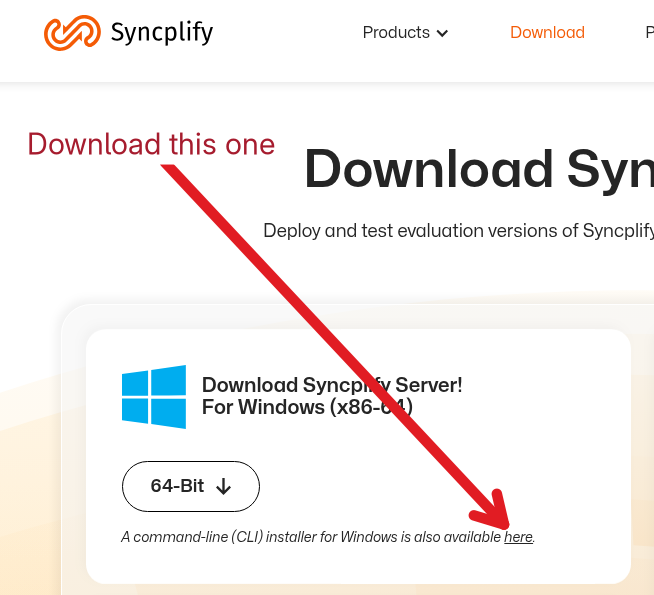
Extract the installer package.
Run the installer as Administrator with this command, where the capital
-Fflag is essential (it forces a new installation even though an old version is present):powershell.\ss-setup.exe install -FImport your v6 or v7 backup into v8. After the v8 installation completes, sign in to the v8 SuperAdmin UI and restore the backup created in step 1 from the Backup & Restore page. Leave the passphrase field empty: backups taken by v6 and v7 predate backup passphrases.
If you follow the steps above carefully, the upgrade to v8 completes and your configuration is fully restored.