Theme
Two factor authentication over SFTP with keyboard interactive authentication
WARNING
The technique in this article requires scripting and event handling, which are available in the Professional and Ultimate editions, and the WebClient!, where users enroll their authenticator. It also requires a scripting function that exists in Syncplify Server! 6.0.22 and later.
Every good system administrator knows that the SSH-2 protocol, and therefore every subsystem built on it, SFTP included, has its own flavor of multi phase authentication. In v8 you can require two methods, for example a key and a password, by selecting both for the user and turning on Require more than one method over SSH in the user editor. That is not what this article is about.
What we are going to see is how to implement true two factor authentication with an authenticator app (the same TOTP codes you use to log in to the web UIs) by taking advantage of SSH-2's keyboard interactive authentication and a little scripting.
INFO
Before you begin, make sure the users you want to protect this way have actually enrolled in two factor authentication through the WebClient!. The TOTP question below checks the code against that enrollment.
1. Write the script
First, write a script that adds the questions the user will be asked at login. There are three kinds of question, and this script shows them all:
javascript
{
  // ask for the user's password
  Session.AddQuestionPassword(0, "Password:");
  // then ask for the current code of the authenticator app
  Session.AddQuestionTOTP(1, "Authenticator code:");
  // finally, a custom question with a fixed answer
  Session.AddQuestion(2, "Your age:", "42", true);
}
The first parameter is the zero based position of the question in the sequence, and every question must end with a colon. AddQuestion takes the expected answer as a string, and a last parameter that says whether the answer is echoed back to the client (never echo a secret). The manual documents the three functions: AddQuestionPassword, AddQuestionTOTP and AddQuestion.
2. Bind it to the right event
Associate the script with one very specific event handler of the virtual site: OnAuthInteractiveSetQuestions, which fires before a user attempts keyboard interactive authentication, precisely so that a script can set the questions.
3. Enable keyboard interactive authentication
Keyboard interactive must be offered by the virtual site and accepted for the user:
- In the Admin UI, open Protocols, then SFTP / SSH, and make sure Keyboard-Interactive is among the Authentication methods the service offers.
- Edit each user who should log in this way and, on the Authentication tab, select Keyboard-Interactive among their authentication methods.
TIP
Restart the virtual site after these changes. The SSH service reads its settings when the site starts, and it activates keyboard interactive authentication only when both the method is offered and a handler for OnAuthInteractiveSetQuestions exists. Once the site runs with both, adding the method to further users needs no restart.
And that is it. The next time the user connects and attempts keyboard interactive authentication, this is what happens:
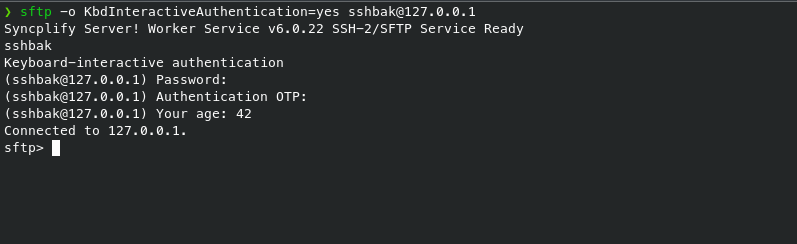
Questions answered correctly, user logged in.