
Upgrading from v6 to v7 (when everything else fails)
More than 99.7% of v6 to v7 upgrades complete successfully without requiring any troubleshooting.
In very rare cases, the v6 database cannot be automatically exported. If this happens, there is a documented workaround available on our developers’ blog.
In an even smaller number of cases, all other documented upgrade methods may still fail. Only in those cases, please follow the procedure below. This method is guaranteed to work, but it does require several manual steps by the system administrator.
Step-by-Step Manual Upgrade Procedure
- Create a backup of your v6.2.60 configuration
Use the SuperAdmin UI to generate a full configuration backup. - Stop and disable all v6 system services
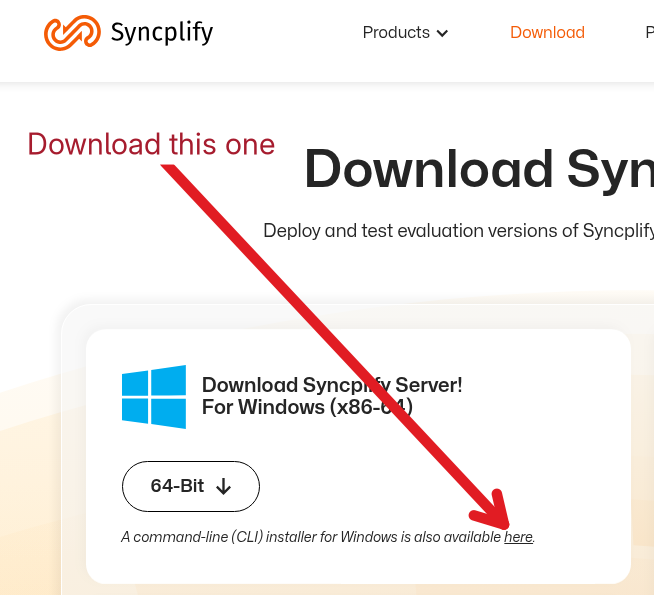
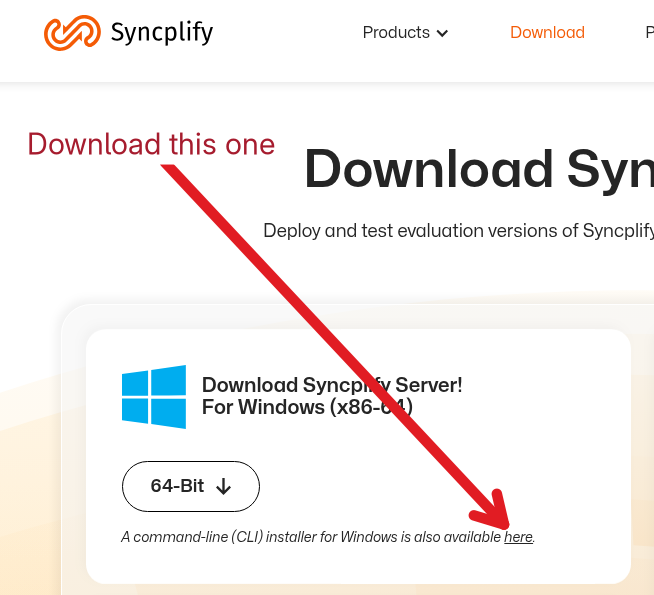
Stopping the services is not sufficient — they must also be disabled to prevent automatic restart. - Download the latest v7.x CLI installer
Download it from our website and make sure you select the CLI installer, not the GUI version.
- Extract the installer package
- Run the installer as Administrator
Execute the following command:.\ss-setup.exe install -F(The capital -F flag is essential.) - Import your v6 backup into v7
After the v7 installation completes successfully, log in to the v7 SuperAdmin UI and import the backup created in Step 1.
If you carefully follow the steps above, the upgrade to v7 will complete successfully and your configuration will be fully restored.