Theme
MinIO
MinIO is probably the best known self hosted, S3 compatible object storage (read more on the MinIO GitHub page).
Step 1: in the MinIO web console
To use this object storage as a back end for SFTP.cloud, first create a bucket in the MinIO web UI, as you normally would:
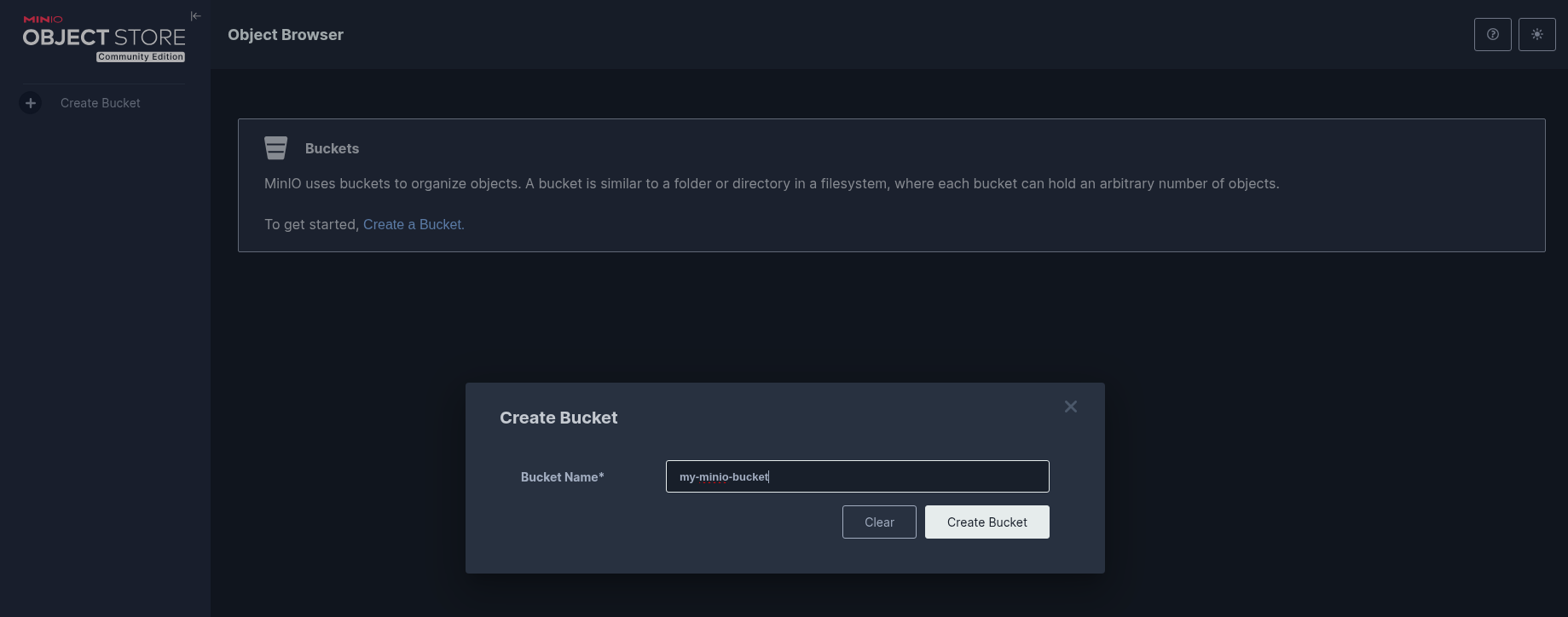
Once the bucket exists, the next thing you need is an access key and its secret. You can use your primary MinIO identity for this, but dedicated per bucket credentials are the better choice. The community edition of MinIO cannot create them in the web UI, but it is easy at the command line. Here is a simple example, where 9000 is the port of the S3 API (the web console listens on 9001):
bash
mc alias set myminio http://127.0.0.1:9000 ADMIN_KEY ADMIN_SECRET

cat > mybucket-policy.json <<'POLICY'
{
  "Version": "2012-10-17",
  "Statement": [
    {
      "Effect": "Allow",
      "Action": ["s3:GetObject","s3:PutObject","s3:DeleteObject","s3:ListBucket"],
      "Resource": ["arn:aws:s3:::mybucket","arn:aws:s3:::mybucket/*"]
    }
  ]
}
POLICY

mc admin accesskey create myminio mybucket-user \
  --access-key "AKIAEXAMPLEKEY" \
  --secret-key "SECRETEXAMPLE" \
  --policy ./mybucket-policy.json \
  --expiry-duration 90d
If you prefer a web based graphical console for this, third party projects exist that do just that, for example georgmangold/console.
That is it for the MinIO side. Now to the SFTP.cloud side.
Step 2: in your SFTP.cloud Storage Connector
Best performance
Deploy the Storage Connector as close as possible to the storage it handles. If your MinIO instance runs in a subnet of your on premises network, the ideal location for the Storage Connector is a VM in that same subnet or in your DMZ, with outbound access only: no inbound rules on your firewall are necessary.
The first thing to do is to add a new Virtual File System. For MinIO in particular there are a few small but important details:
- Type:
S3(as for any other S3 compatible object store) - Region: leave it empty
- Endpoint: the MinIO S3 endpoint. By default MinIO serves the S3 API on port 9000, so it is
http://<minio-host>:9000, orhttps://...if you configured TLS, which you definitely should. - Use path style addressing: on. MinIO expects the bucket name in the request path unless you set
MINIO_DOMAINand a wildcard DNS record. With the toggle off, the Connector looks up<bucket>.<minio-host>, a name that does not exist, and the connection test tells you so. - Skip TLS certificate verification: leave it off. If MinIO uses a certificate from your own CA, trust that CA on the machine running the Connector instead; the toggle is for a test bench.
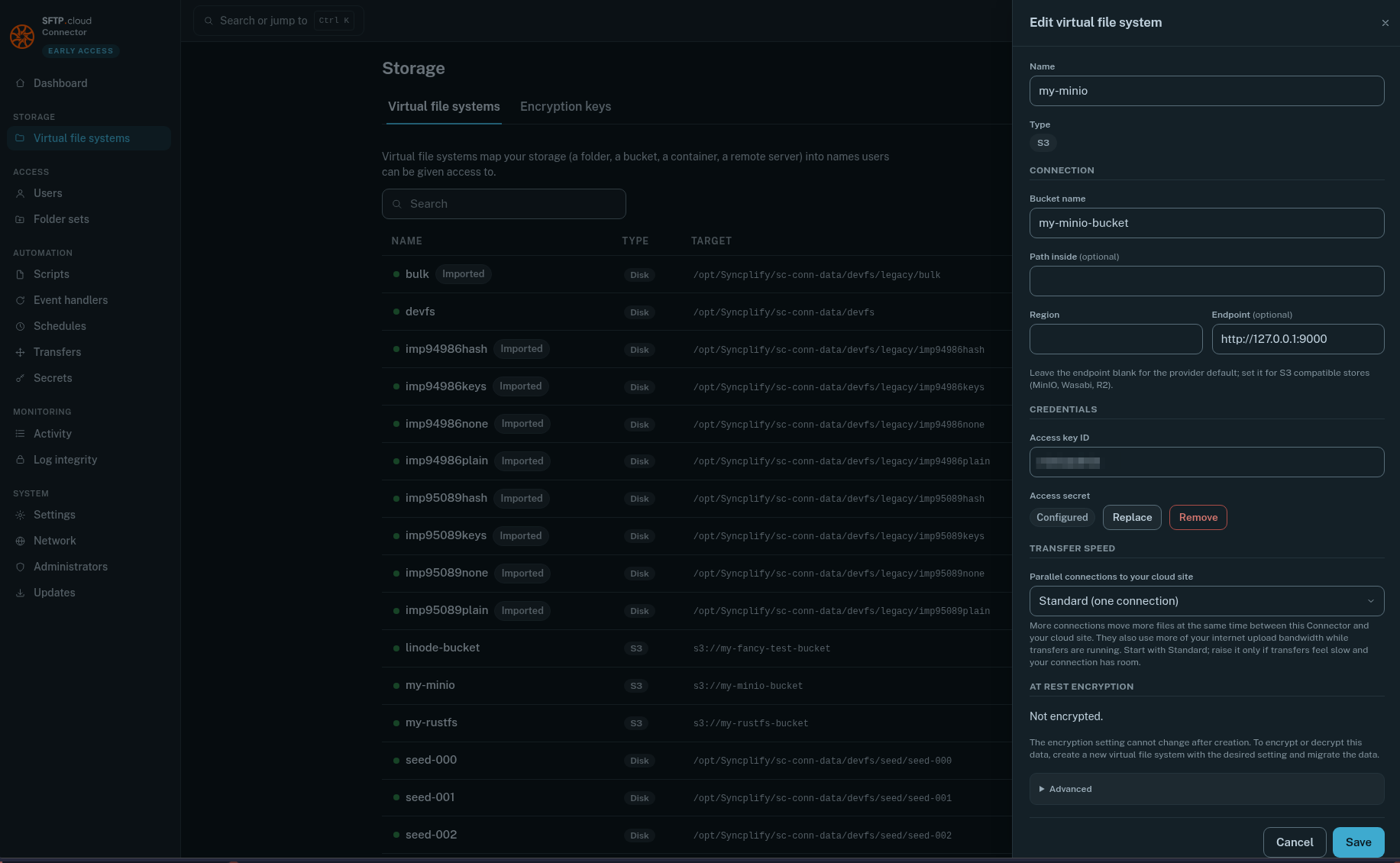
WARNING
Do not forget to press the Save button next to the Access secret after typing it in, or it will not be saved and nothing will work.
When you save, the Connector tests the storage right away. If it cannot reach it, the form stays open and says why.
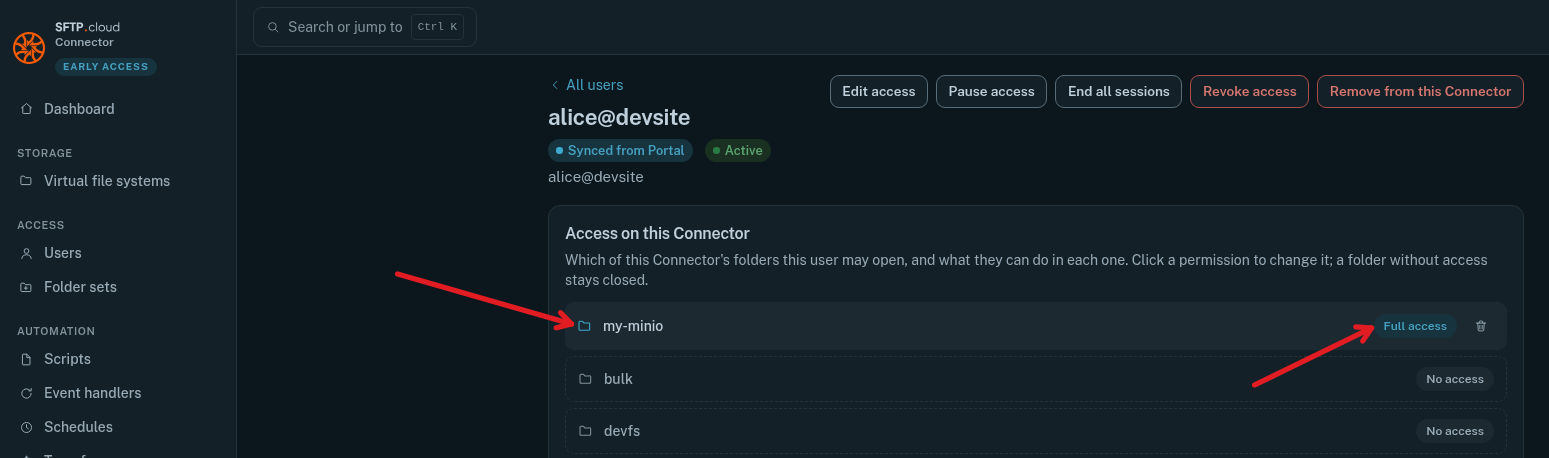
Then, still in the Storage Connector UI, go to the Users page and give your users the desired access to the new VFS:
Finally
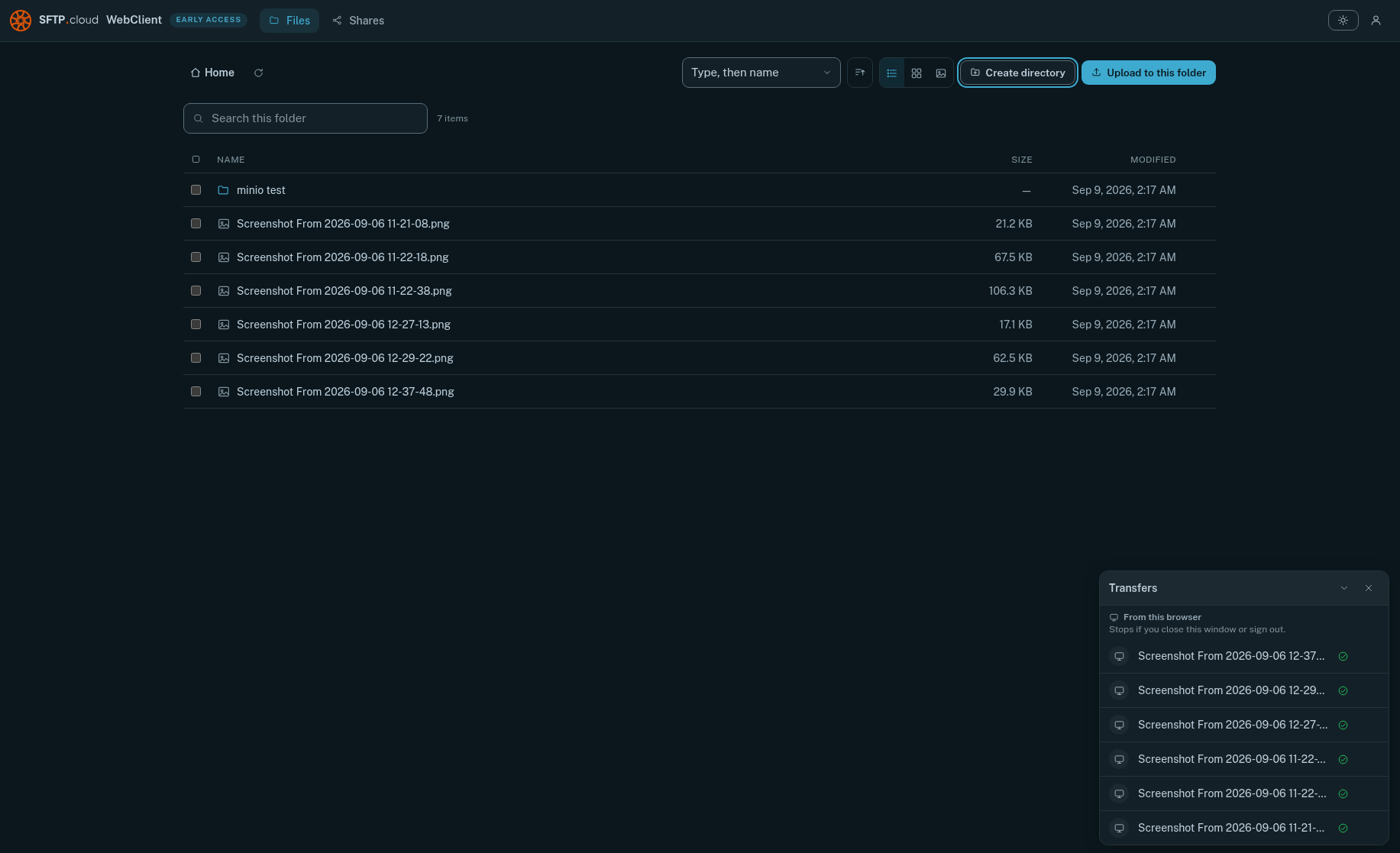
Test it. Connect through your SFTP.cloud WebClient, create a folder, upload some files:
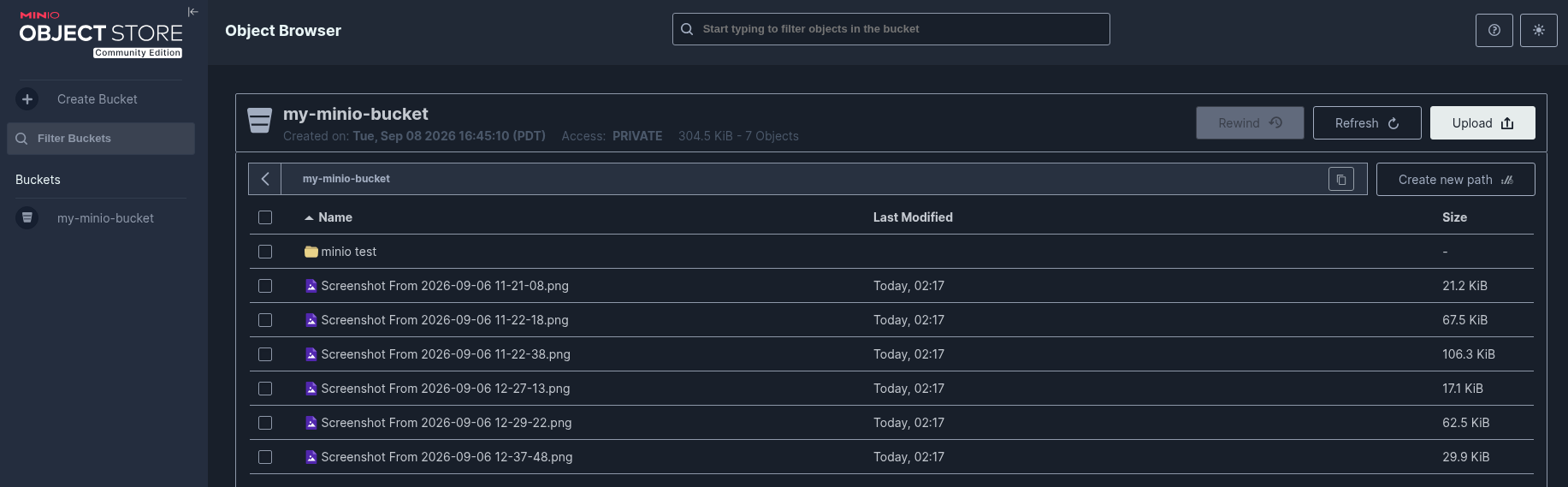
Then, back in the MinIO web UI, verify that your folder and files did land there:
In the manual