Theme
Linode Object Storage (Akamai Cloud)
Linode Object Storage is an S3 compatible object storage by Linode, now Akamai Cloud.
Step 1: in Linode
To use this object storage as a back end for SFTP.cloud, first create a bucket in the Linode region of your choice. Open the Linode management UI in your browser, sign in, and then:
- Select Object Storage in the Storage section of the sidebar.
- Select the Buckets tab and choose Create Bucket.
- Pick a name and a region for your bucket.
- Choose Create Bucket in the configuration panel once ready.
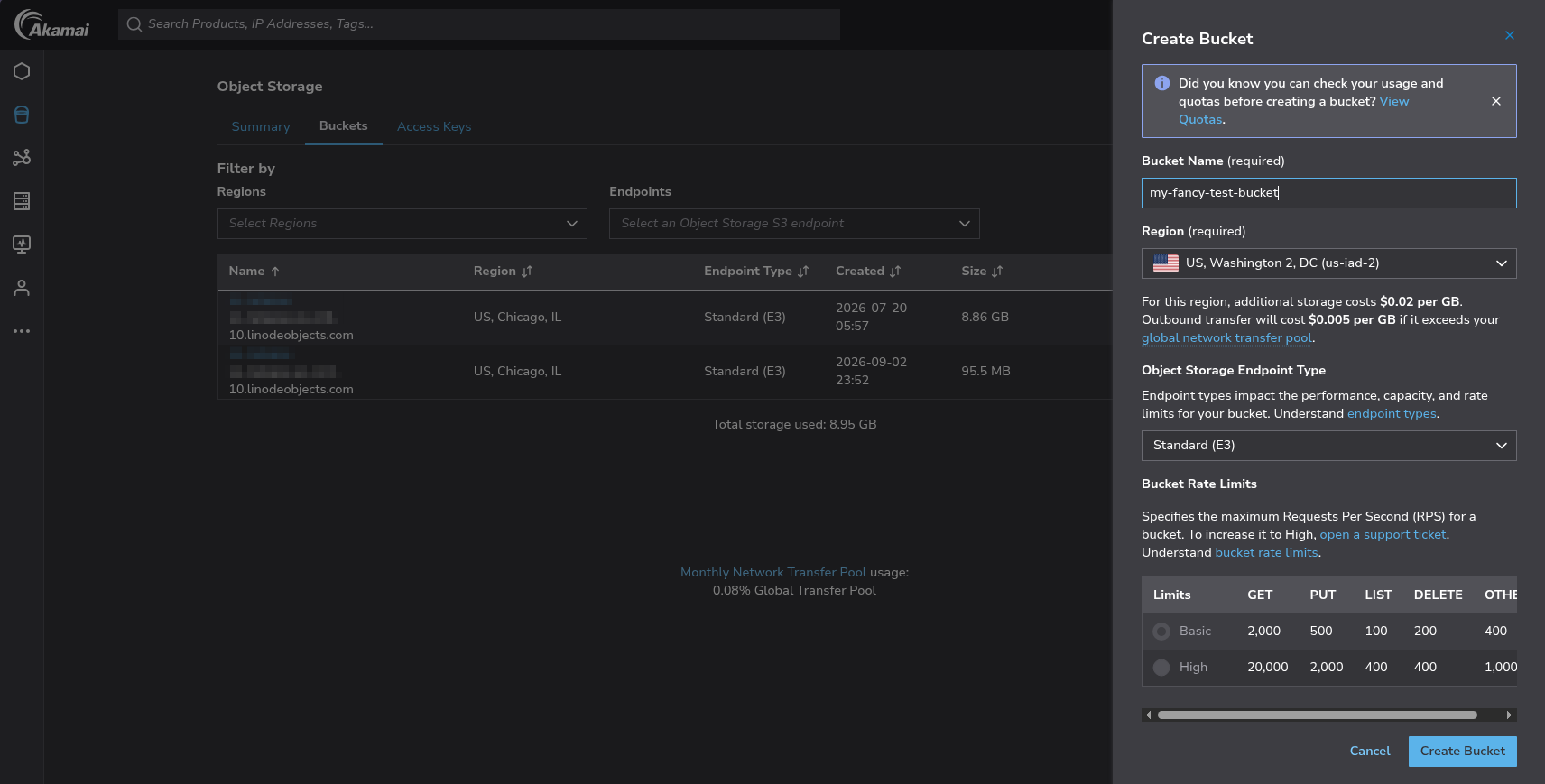
Once the bucket exists, the next thing you need is an access key and its secret. Issue them in the Access Keys tab of the same section. Limit the scope of the access key to the buckets you genuinely want to use through SFTP.cloud.
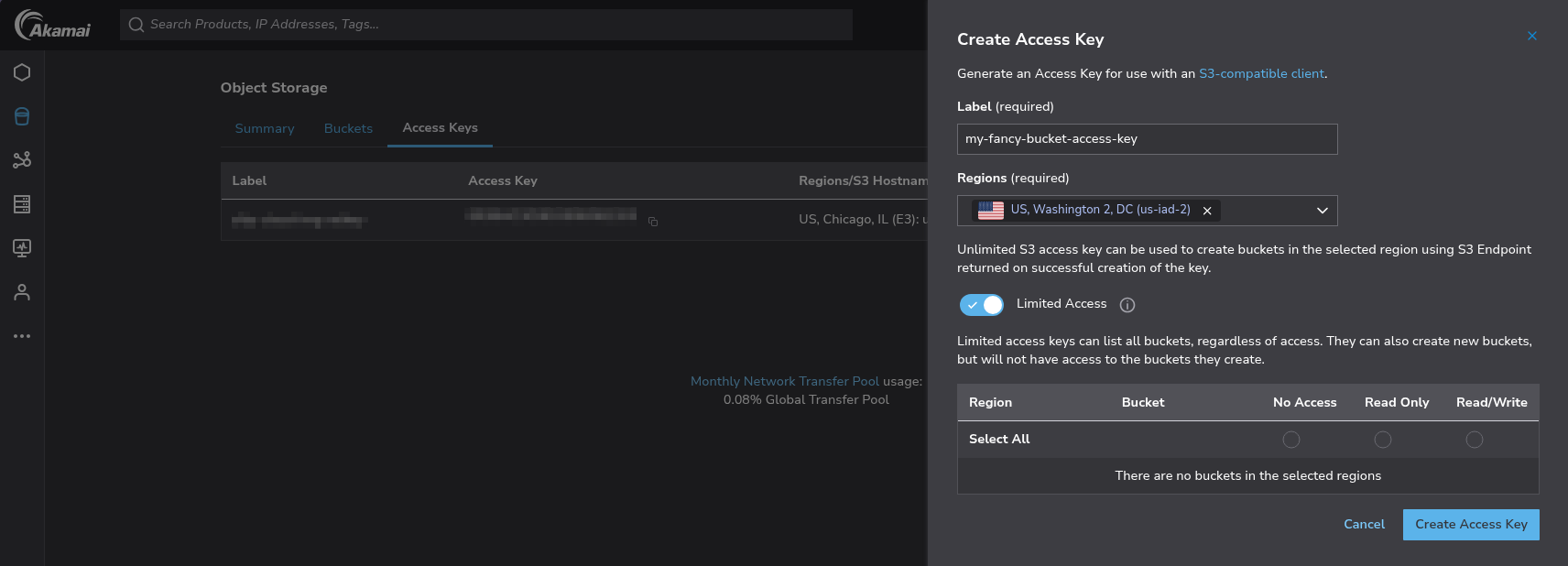
That is it for the Linode side. Now to the SFTP.cloud side.
Step 2: in your SFTP.cloud Storage Connector
Best performance
Deploy the Storage Connector as close as possible to the storage it handles. For Linode Object Storage, a Linode VM or a container in Linode Kubernetes Engine in the bucket's region are the ideal choices.
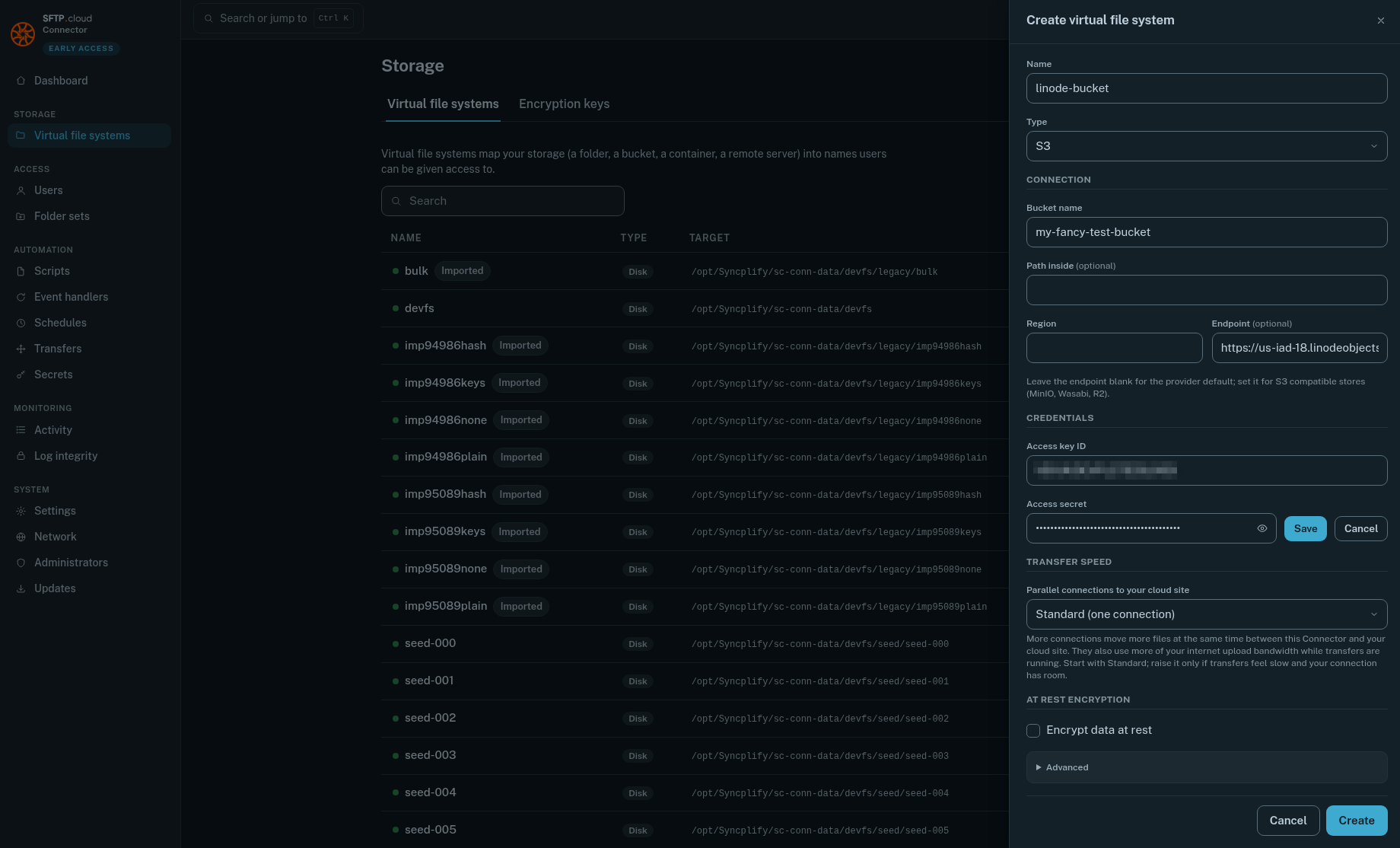
The first thing to do is to add a new Virtual File System. For Linode Object Storage in particular there are a few small but important details:
- Type:
S3(as for any other S3 compatible object store) - Region: leave it empty
- Endpoint: the endpoint of your bucket's cluster, without the bucket name. For example, a bucket in the Washington, DC 2 region uses
https://us-iad-18.linodeobjects.com. The Linode UI shows the exact host name for your bucket. - Use path style addressing: off. Linode serves every bucket as its own host name.
WARNING
Do not forget to press the Save button next to the Access secret after typing it in, or it will not be saved and nothing will work.
When you save, the Connector tests the storage right away. If it cannot reach it, the form stays open and says why.
Then, still in the Storage Connector UI, go to the Users page and give your users the desired access to the new VFS:
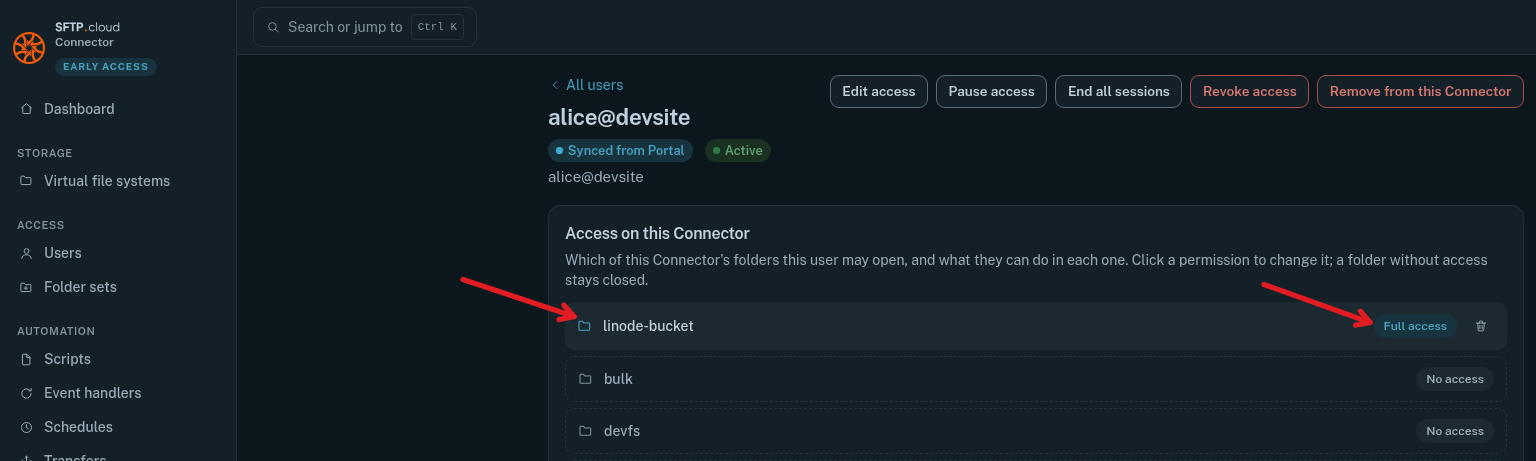
Finally
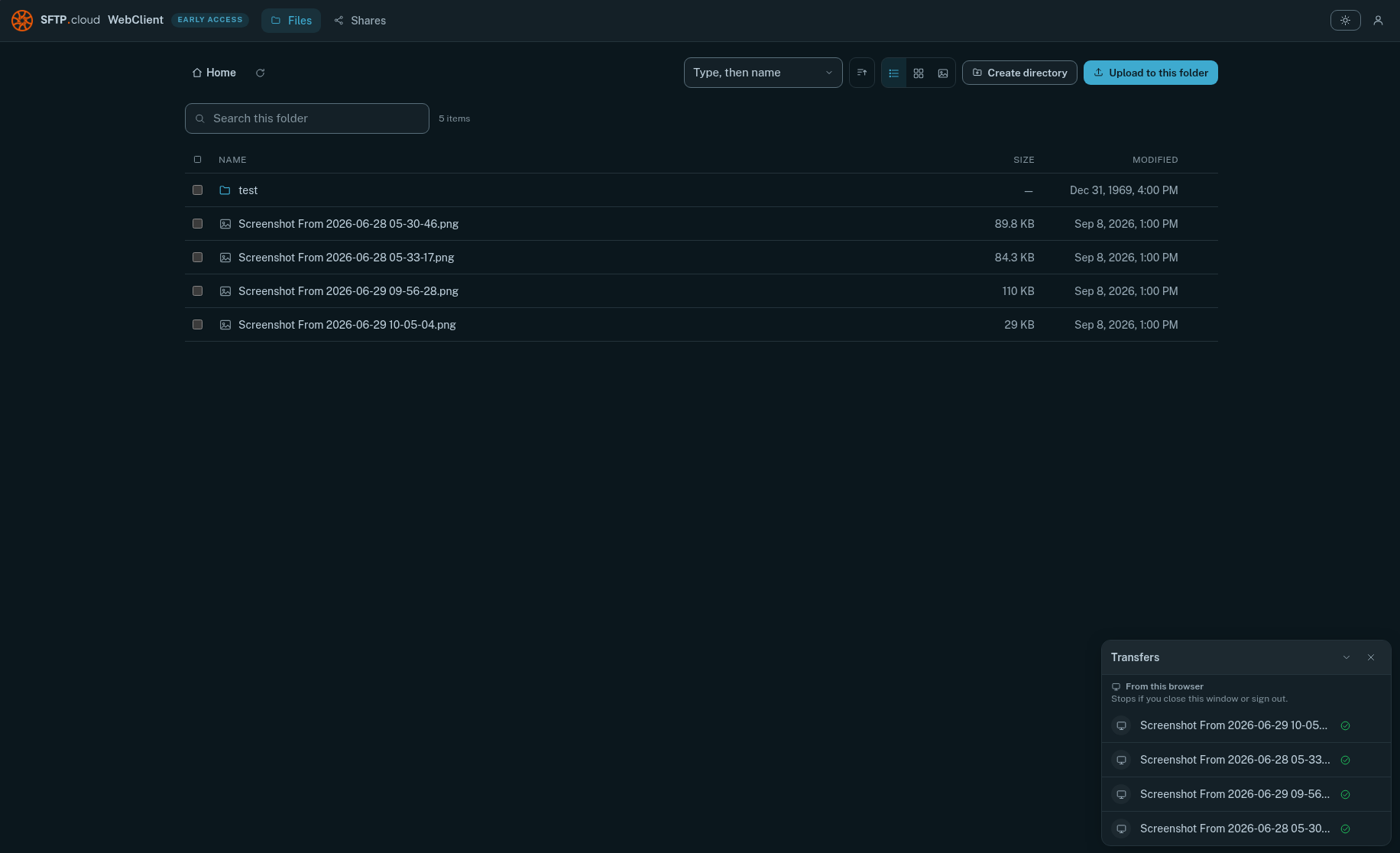
Test it. Connect through your SFTP.cloud WebClient, create a folder, upload some files:
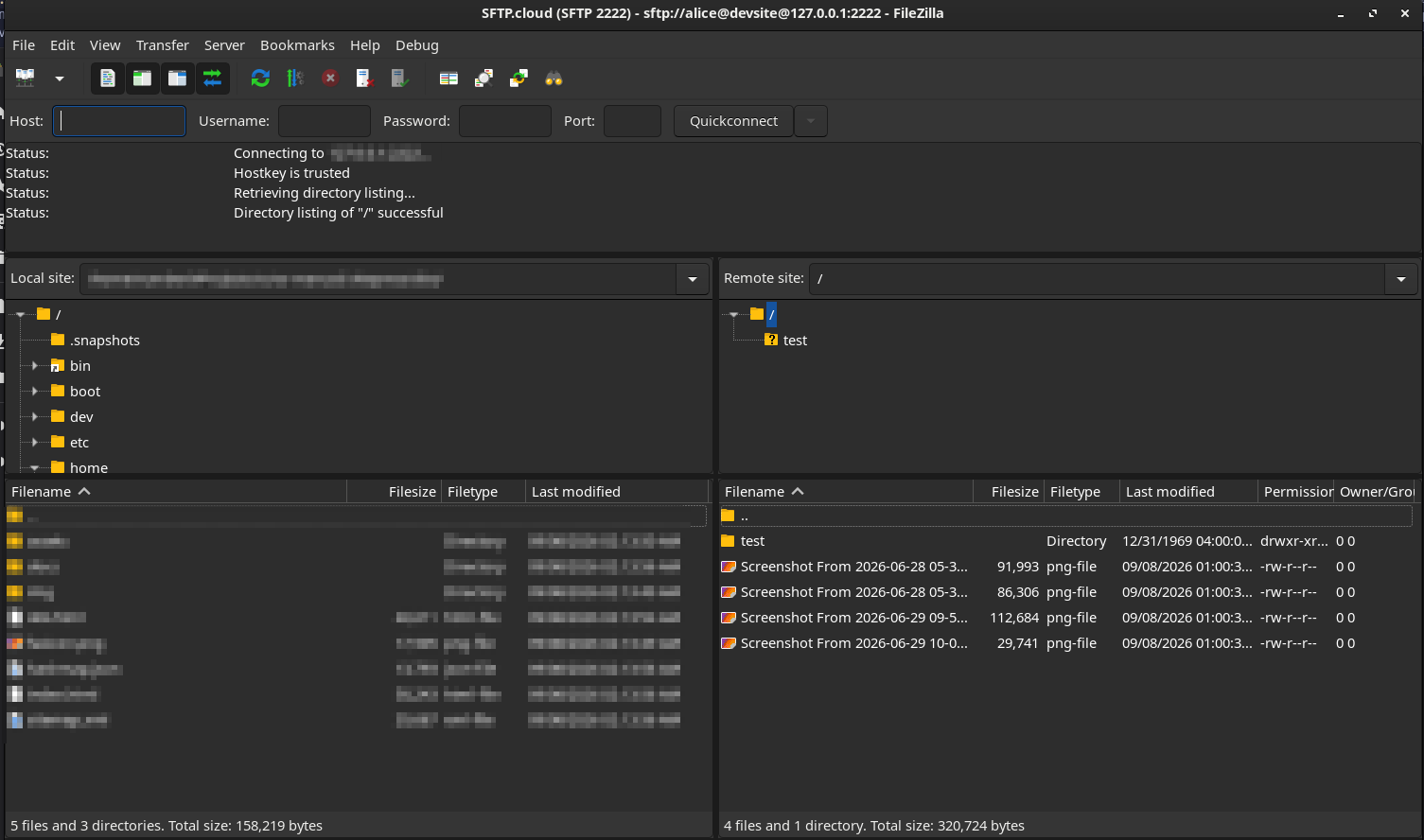
You can also double check with an SFTP or FTPS client:
In the manual