
RustFS
RustFS is an absolutely remarkable S3-compatible object storage (read more on the RustFS web site).
Step #1: in the RustFS web console
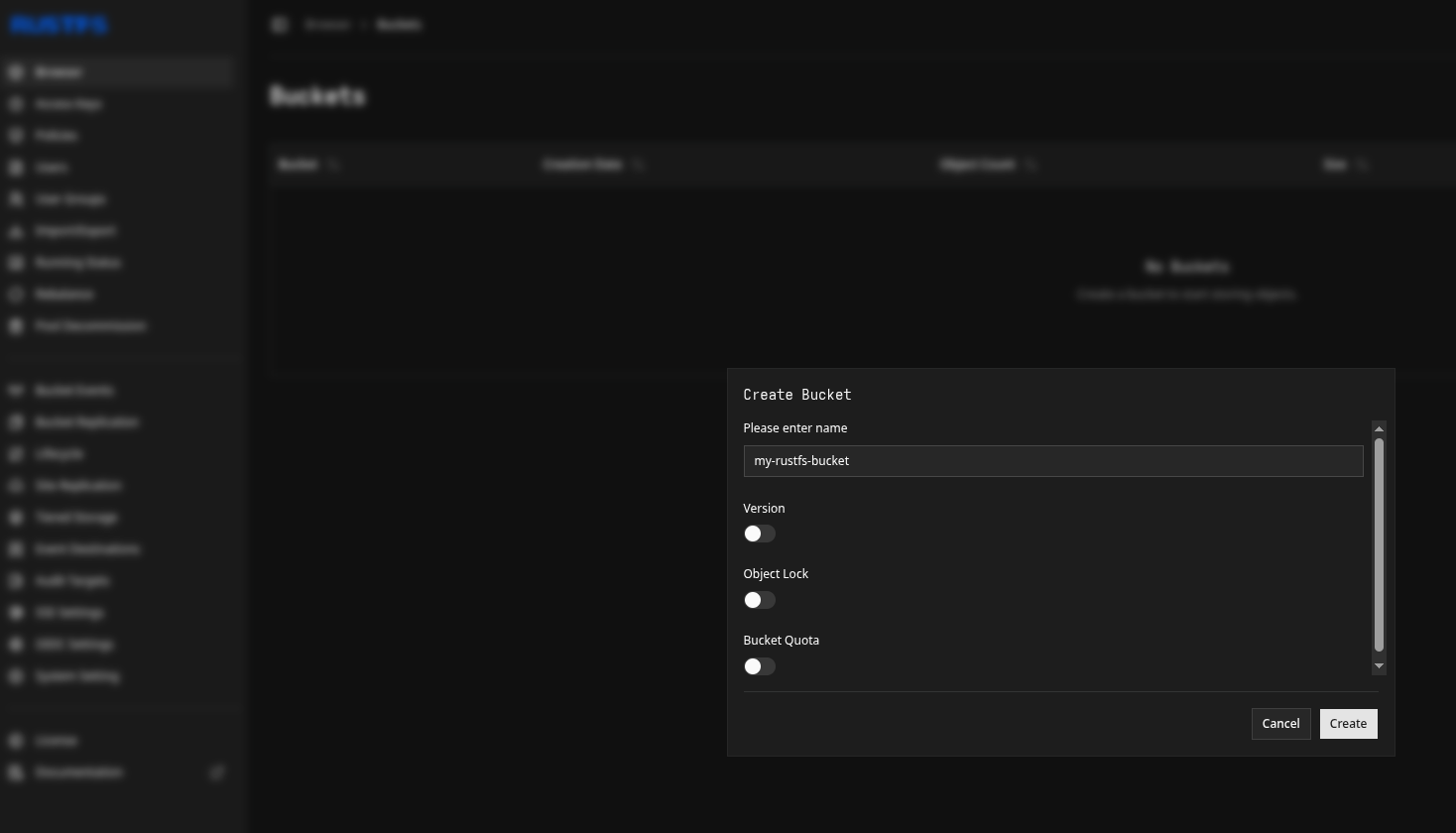
To use this object storage as a backend for SFTP.cloud, the first thing you need to do is creating a bucket in the RustFS web UI, as you'd usually do:
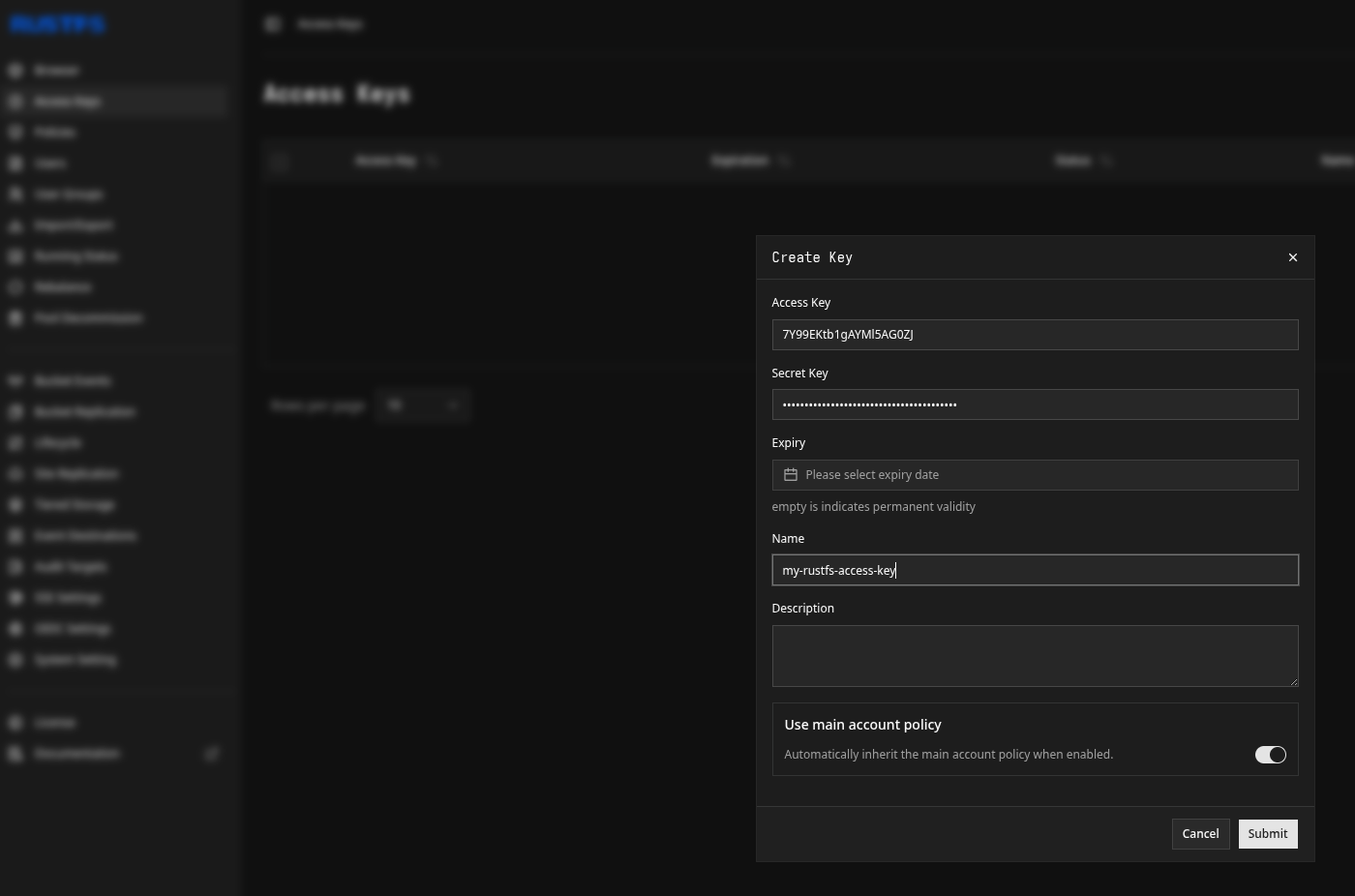
Once the bucket is created, the next thing you'll need is an Access Key (and its associated Secret) to access it. You can issue them in the Access Keys tab in the RustFS web UI. We recommend you limit the scope of your Access Key only to the bucket(s) you genuinely want to use via SFTP.cloud.
That's it for the RustFS side. Now let's move to the SFTP.cloud side.
Step #2: in your SFTP.cloud Storage Connector
The first thing to do is to add a new Virtual File System. For Linode Object Storage in particular there are a few small (but extremely important) details to pay attention to:
- Type:
S3(just like any other S3-compatible object stores) - Region: leave empty
- Endpoint: this needs to be the RustFS S3 endpoint, by default RustFS uses
http://<rustfs-host-ip-addr>:30292unless you configured it with TLS (which you definitely should) in which case it'shttps://...
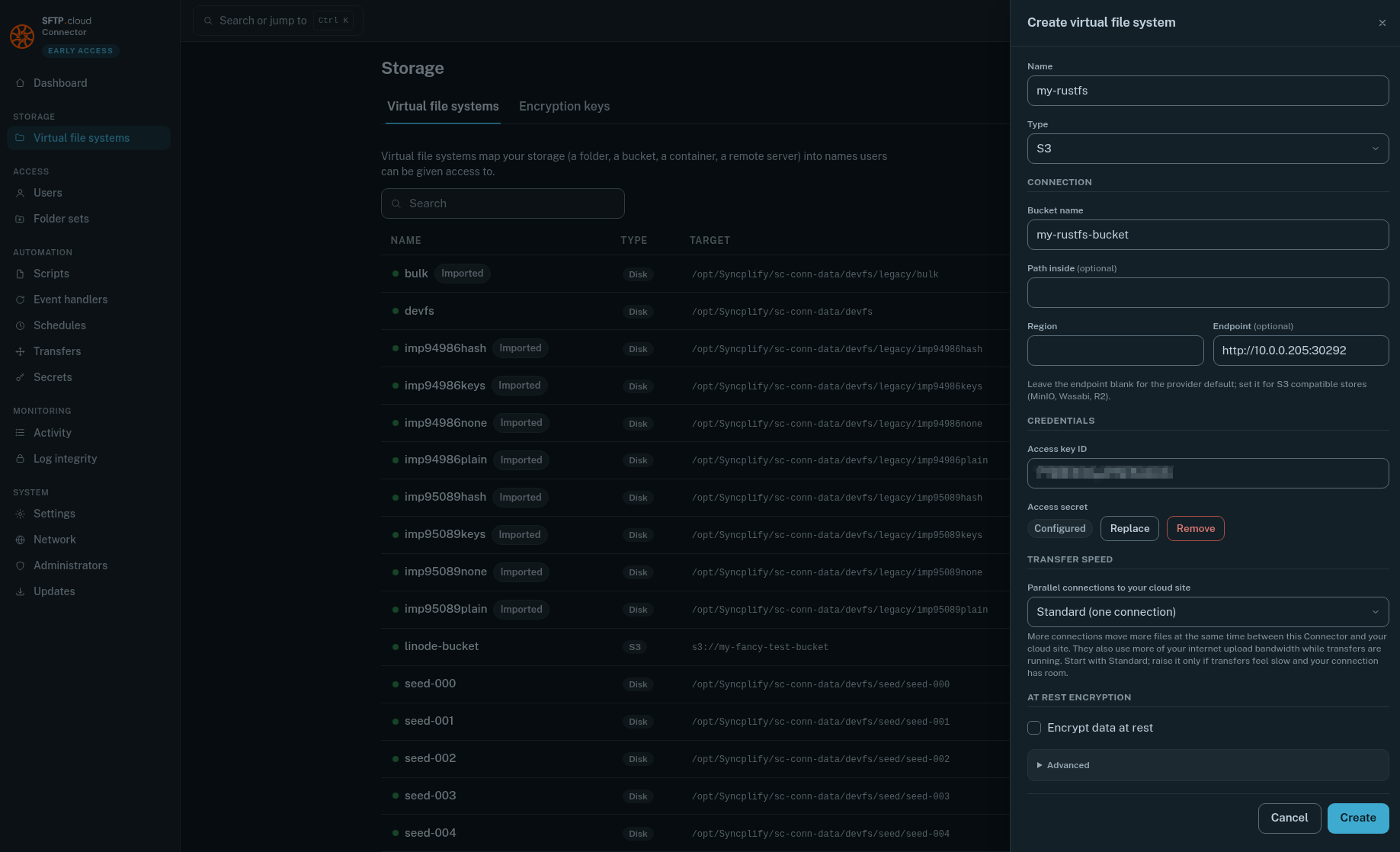
Do NOT forget to push the Save button next to the Access secret after you type it in, or it won't be saved, and nothing will work.
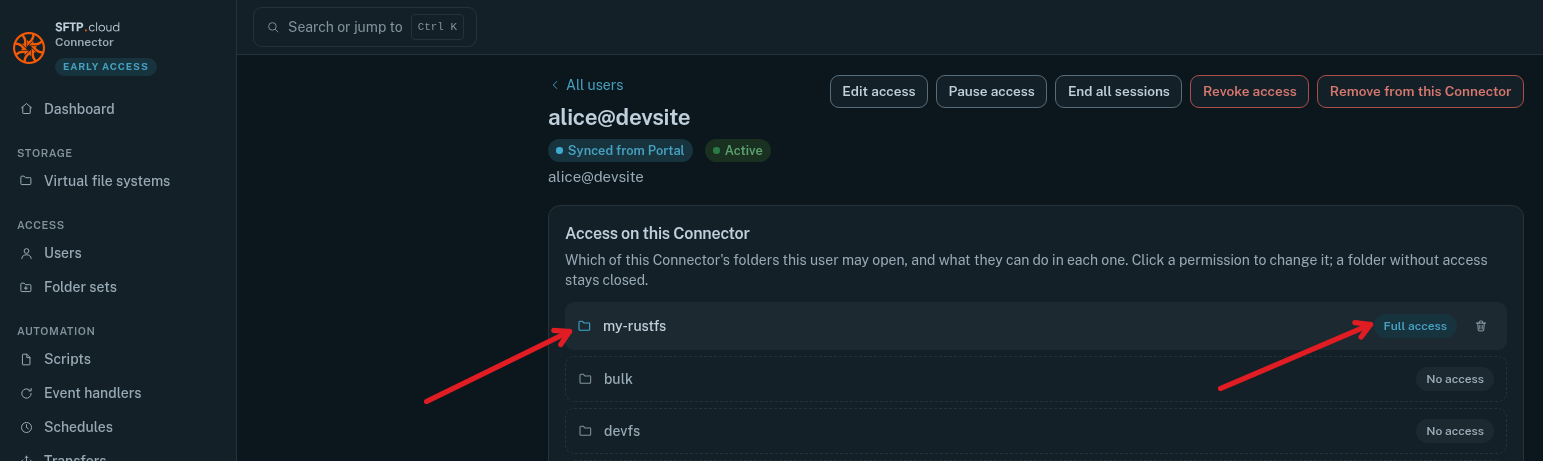
Then, still in the Storage Connector UI, go to the Users page, and give your user(s) the desired access to the newly created VFS:
Finally
Test it out. Connect to it via your SFTP.cloud WebClient, create a folder, upload some files...
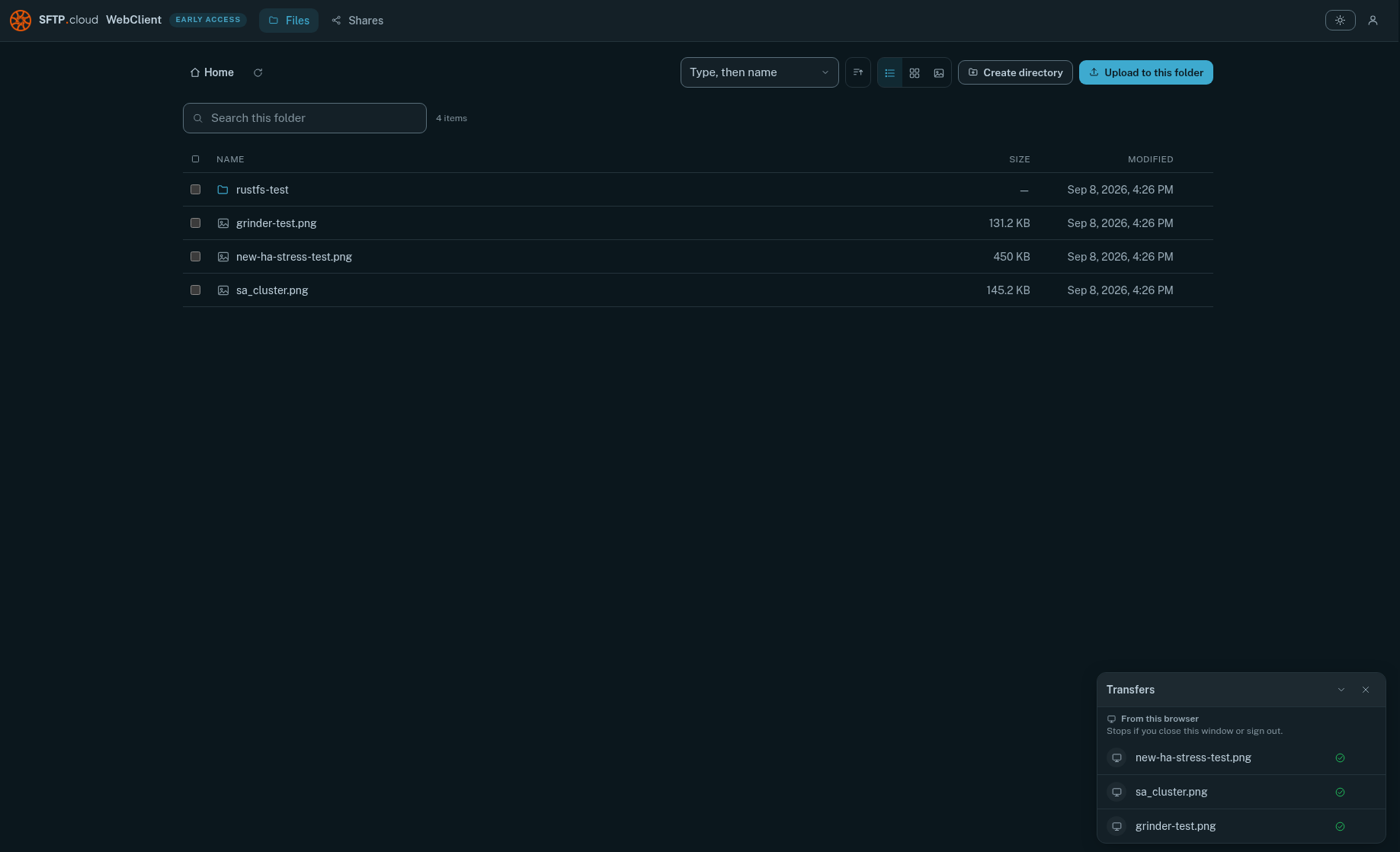
Then, back in the RustFS web UI you can verify that your folder and file(s) did actually land there:
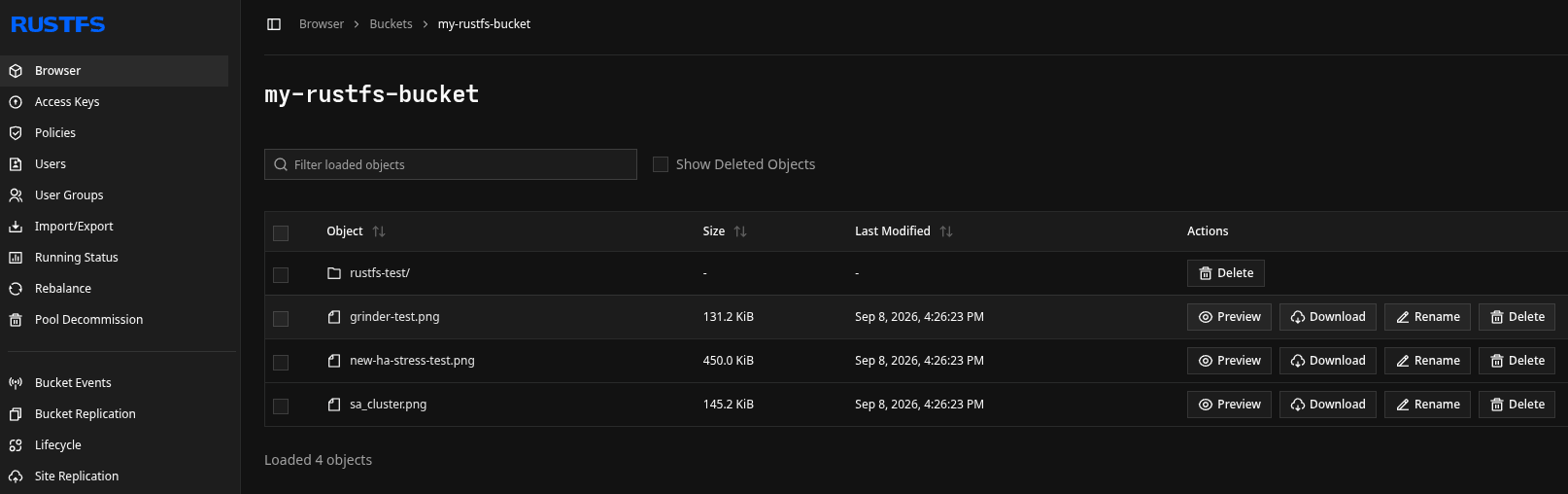
And you're done. That's all there is to it. 😄