How to trigger AFT! jobs from the command line
AFT! provides two commands for running scripts from a shell or a CI/CD pipeline.
| Command | What it does |
aft start |
Calls the REST API of a running AFT! instance and queues the job there. The script runs inside the service, with full access to the VFS Library and secrets. Returns immediately; the job runs in the background. |
aft run |
Executes a .syncjs file directly in the calling shell process. No API key needed. The script runs to completion before the command returns. |
aft start: trigger a stored script via API
Prerequisite
Create an API key in the AFT! web UI under Settings > API Keys. Make sure the key's IP allowlist includes the machine you will be calling from. For calls from the same machine, 127.0.0.1 is sufficient.
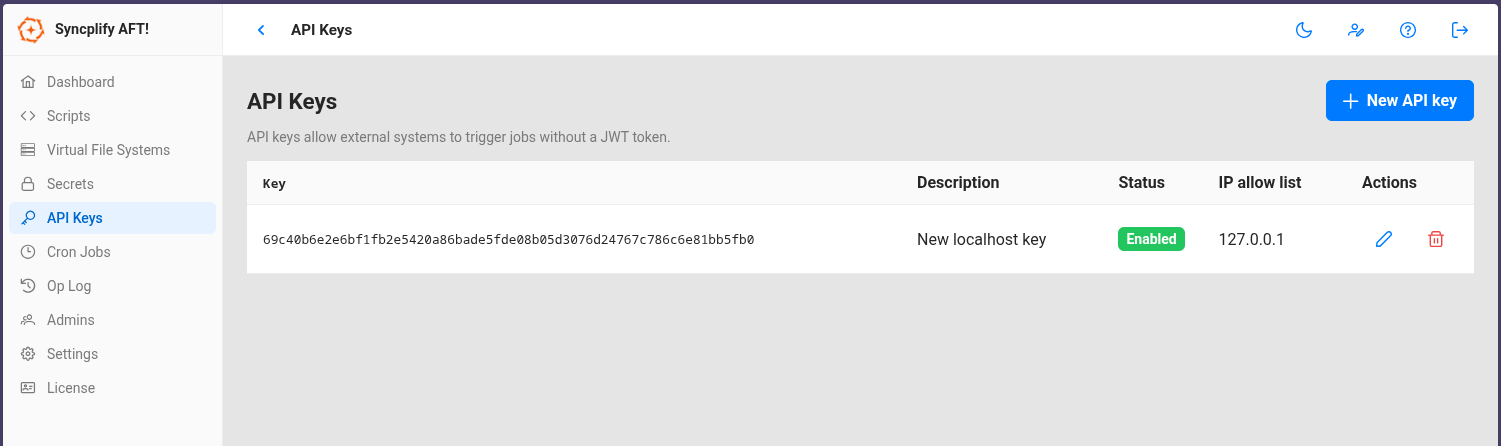
Minimal example
Linux/MacOS:
./aft start -n "My Backup Job" -a "xiM2ruBm2QZkhTSN6BPd9BqmxVEBVbrgNYVMkNQb6hfj"Windows (PowerShell):
.\aft.exe start -n "My Backup Job" -a "xiM2ruBm2QZkhTSN6BPd9BqmxVEBVbrgNYVMkNQb6hfj"Script names are matched case-insensitively.
With parameters and a remote instance
Linux/MacOS:
aft start \
  -n "My Backup Job" \
  -a "xiM2ruBm2QZkhTSN6BPd9BqmxVEBVbrgNYVMkNQb6hfj" \
  --params '{"character":"goofy"}' \
  --host "192.168.1.10:44399"
Windows (PowerShell):
.\aft.exe start `
  -n "My Backup Job" `
  -a "xiM2ruBm2QZkhTSN6BPd9BqmxVEBVbrgNYVMkNQb6hfj" `
  --params '{"character":"goofy"}' `
  --host "192.168.1.10:44399"
Inside the script, read the parameter with Param("character").
--host defaults to 127.0.0.1:44399 when omitted.
aft run: execute a script file directly
The Allow CLI Run option must be enabled in AFT! Settings. It is disabled by default but an administrator can enable it.
Minimal example
Linux/MacOS:
./aft run -f "/opt/scripts/my-transfer.syncjs"Windows (PowerShell):
.\aft.exe run -f "C:\Scripts\my-transfer.syncjs"With parameters
Linux/MacOS:
./aft run -f "/opt/scripts/my-transfer.syncjs" -p '{"destination":"/archive/2026"}'Windows (PowerShell):
.\aft.exe run -f "C:\Scripts\my-transfer.syncjs" -p '{"destination":"D:\Archive\2026"}'Notes
aft runexecutes synchronously: the command blocks until the script finishes and exits with code 0 on success, or code 1 if the script crashes or fails.- If
aft serveis running on the same machine,aft runautomatically delegates to the running service so the script has full access to the VFS Library and secrets. Ifaft serveis not running, it opens the local database directly. - This makes aft run a natural fit for OS-cron jobs, CI/CD pipelines, and shell scripts that need a definitive exit code.