Operation
Topics that cover typical operational tasks in Syncplify AFT!
- Understanding what Syncplify AFT! is
- Breaking Changes: AFT! v3 to v4
- How to trigger AFT! jobs from the command line
- Calling the AFT! REST API directly to trigger a job
- Locked yourself out of AFT!'s web UI? Don't panic.
Understanding what Syncplify AFT! is
True Managed File Transfer (MFT) requires the interoperation of 2 parts:
- a file transfer server (that's what Syncplify Server! is)
- an automated file transfer client (that's what Syncplify AFT! is)
While Syncplify Server! has been well established on the market as one of the overall best SFTP/FTPS servers for several years, we just recently released its MFT counterpart: Syncplify AFT!
The video here below shows the main features found in Syncplify AFT! and is a good general overview of the product itself.
Breaking Changes: AFT! v3 to v4
This document lists every change in AFT! v4 that requires a script or configuration to be updated before it will run as expected. Read it before upgrading any production instance.
The short answer for most users: the vast majority of AFT! v3 scripts will run in v4 without any modification. The only scripts that need changes are those that use any of the features listed below.
FsWatcher.Start() now requires a callback
V3 pattern (no longer works):
watcher.Start();

while (true) {
    Sleep(500);
    if (HaltSignalReceived) {
        break;
    }
    var evt = watcher.Events();
    for (var i = 0; i < evt.length; i++) {
        if (evt[i].Event == 'WRITE') {
            doSomethingWith(evt[i].Object);
        }
    }
}
V4 pattern (new):
watcher.Start(function(evt) {
    // evt = { TimeStamp, Event, Object }
    if (evt.Event == EVT_WRITE) {
        doSomethingWith(evt.Object);
    }
});

WaitForHaltSignal();
watcher.Stop();
What changed:
Start()now requires a callback function as its only argument. Calling it with no arguments silently does nothing.Events()has been removed. There is no longer a queue to poll.WaitForHaltSignal()replaces thewhile/Sleep/HaltSignalReceivedloop. It blocks until a halt signal is received, using no CPU and producing no log noise.Stop()is a new required step afterWaitForHaltSignal()returns. It waits until the internal event goroutine has fully exited before returning, ensuring no further callbacks fire after the script continues past that point.
Event-type note: in v3 the event types were uppercase strings ("WRITE", "CREATE", "REMOVE", "RENAME", "CHMOD"). In v4 they are now named constants (EVT_WRITE, EVT_CREATE, EVT_REMOVE, EVT_RENAME, EVT_CHMOD). Update any == comparisons accordingly.
RemoteWatcher constructor now takes a VFS name
V3 pattern (no longer works):
var rcli = new SftpClient();
rcli.Host  = 'files.example.com:22';
rcli.User  = 'uploader';
rcli.Pass  = 's3cr3t';
rcli.Connect();

var rw = new RemoteWatcher(rcli);
V4 pattern (new):
// "production-sftp" is the name of an entry in the AFT! VFS Library
var rw = new RemoteWatcher("production-sftp");
What changed: the constructor no longer accepts a live client object. It accepts a string: the name of a named VFS connection profile stored in the AFT! Virtual File Systems library. The engine resolves the profile, decrypts its credentials, and opens the connection internally. Credentials never appear in script source code in v4.
To migrate: create a Virtual File System entry for each remote system your RemoteWatcher scripts target, then replace the client construction code with new RemoteWatcher("profile-name").
HaltSignalReceived is now a function, not a property
V3 pattern (no longer works):
if (HaltSignalReceived) {   // property access, no parentheses
    break;
}
V4 pattern (new):
if (HaltSignalReceived()) {   // function call, parentheses required
    break;
}
Why this matters: in v4, HaltSignalReceived is a JavaScript function. A bare reference to a function (without calling it) is always truthy in JavaScript, regardless of the actual halt state. A script that uses if (HaltSignalReceived) without parentheses will evaluate the condition as true on the very first iteration and exit immediately, never processing any events.
Note: most scripts that reach v4 with FsWatcher or RemoteWatcher will be rewritten to use the callback pattern and WaitForHaltSignal() anyway, at which point this property is rarely needed. It remains available for scripts that prefer explicit polling.
*FromSecret credential properties have been removed
In v3, every client object exposed shortcut properties that accepted a secret name and resolved it internally. These properties no longer exist in v4.
V3 pattern (no longer works):
var sftpcli = new SftpClient();
sftpcli.User           = 'uploader';
sftpcli.PassFromSecret = 'name-of-my-secret';       // v3 shortcut property

var s3cli = new S3Client();
s3cli.APIKeySecretFromSecret = 'aws-secret-name';   // v3 S3 shortcut property

cli.Options.OTFEKeyFromSecret = 'otfe-key-secret';  // v3 OTFE shortcut property
V4 pattern (new):
var sftpcli = new SftpClient();
sftpcli.User = 'uploader';
sftpcli.Pass = GetSecret('name-of-my-secret');      // call GetSecret() inline

var s3cli = new S3Client();
s3cli.AccessSecret = GetSecret('aws-secret-name');  // AccessSecret is the v4 field name

cli.Options.OTFEKey = GetSecret('otfe-key-secret'); // OTFEKey is the v4 field name
What changed: the *FromSecret shortcut properties (PassFromSecret, APIKeySecretFromSecret, Options.OTFEKeyFromSecret, and any others of the same pattern) have been removed. In v4 GetSecret("name") is a first-class global function. Call it directly and assign its return value to the appropriate credential field.
Migration: search all script files for the string FromSecret. Each occurrence maps mechanically to a GetSecret() call: replace client.XFromSecret = "name" with client.X = GetSecret("name"), substituting the base field name (Pass, AccessSecret, OTFEKey, etc.).
Admin accounts are not migrated
AFT! v3 stored admin passwords as SHA-256 hashes of random_salt + username + password. AFT! v4 uses bcrypt, which is an incompatible format. Because the plain-text passwords cannot be recovered from the v3 hashes, migrating admin accounts would only produce accounts that nobody could log into.
aft import-from-aft3, therefore, does not import any admin profiles. AFT! v4 creates the initial admin account during first-run setup. Any additional admin accounts must be recreated manually in the v4 web UI after the initial setup is complete.
Blockly script type removed
AFT! v3 allowed scripts to be authored in Blockly (a visual block-based editor). AFT! v4 supports only SyncJS JavaScript scripts. Blockly scripts are skipped during migration with a warning listing each one by name; they cannot be run in v4.
If any Blockly scripts are still in use, their logic must be rewritten from scratch in JavaScript after upgrading.
How to trigger AFT! jobs from the command line
AFT! provides two commands for running scripts from a shell or a CI/CD pipeline.
| Command | What it does |
aft start |
Calls the REST API of a running AFT! instance and queues the job there. The script runs inside the service, with full access to the VFS Library and secrets. Returns immediately; the job runs in the background. |
aft run |
Executes a .syncjs file directly in the calling shell process. No API key needed. The script runs to completion before the command returns. |
aft start: trigger a stored script via API
Prerequisite
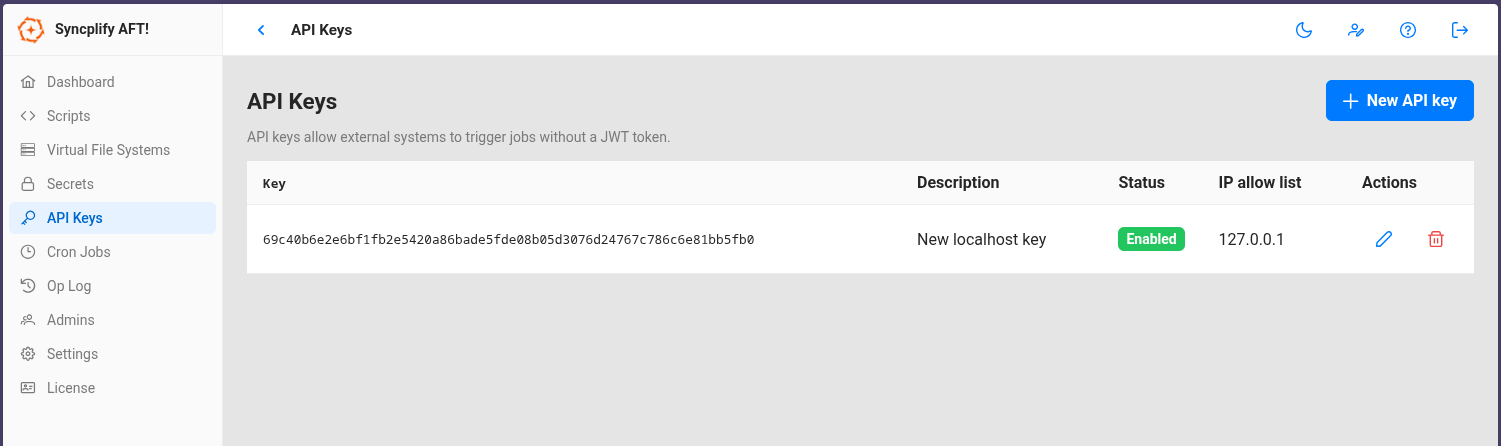
Create an API key in the AFT! web UI under Settings > API Keys. Make sure the key's IP allowlist includes the machine you will be calling from. For calls from the same machine, 127.0.0.1 is sufficient.
Minimal example
Linux/MacOS:
./aft start -n "My Backup Job" -a "xiM2ruBm2QZkhTSN6BPd9BqmxVEBVbrgNYVMkNQb6hfj"Windows (PowerShell):
.\aft.exe start -n "My Backup Job" -a "xiM2ruBm2QZkhTSN6BPd9BqmxVEBVbrgNYVMkNQb6hfj"Script names are matched case-insensitively.
With parameters and a remote instance
Linux/MacOS:
aft start \
  -n "My Backup Job" \
  -a "xiM2ruBm2QZkhTSN6BPd9BqmxVEBVbrgNYVMkNQb6hfj" \
  --params '{"character":"goofy"}' \
  --host "192.168.1.10:44399"
Windows (PowerShell):
.\aft.exe start `
  -n "My Backup Job" `
  -a "xiM2ruBm2QZkhTSN6BPd9BqmxVEBVbrgNYVMkNQb6hfj" `
  --params '{"character":"goofy"}' `
  --host "192.168.1.10:44399"
Inside the script, read the parameter with Param("character").
--host defaults to 127.0.0.1:44399 when omitted.
aft run: execute a script file directly
The Allow CLI Run option must be enabled in AFT! Settings. It is disabled by default but an administrator can enable it.
Minimal example
Linux/MacOS:
./aft run -f "/opt/scripts/my-transfer.syncjs"Windows (PowerShell):
.\aft.exe run -f "C:\Scripts\my-transfer.syncjs"With parameters
Linux/MacOS:
./aft run -f "/opt/scripts/my-transfer.syncjs" -p '{"destination":"/archive/2026"}'Windows (PowerShell):
.\aft.exe run -f "C:\Scripts\my-transfer.syncjs" -p '{"destination":"D:\Archive\2026"}'Notes
aft runexecutes synchronously: the command blocks until the script finishes and exits with code 0 on success, or code 1 if the script crashes or fails.- If
aft serveis running on the same machine,aft runautomatically delegates to the running service so the script has full access to the VFS Library and secrets. Ifaft serveis not running, it opens the local database directly. - This makes aft run a natural fit for OS-cron jobs, CI/CD pipelines, and shell scripts that need a definitive exit code.
Calling the AFT! REST API directly to trigger a job
If you need to trigger an AFT! job from a script or tool that cannot run the aft start command, you can call the REST API directly. All you need is an API key and the name of the script you want to run.
Create the API key in the AFT! web UI under API Keys, and make sure its IP allow-list includes the machine making the request.
Windows (PowerShell)
Minimal example:
$headers = @{ "X-API-Key" = "your-api-key-here" }
$body    = @{ scriptName = "My Backup Job" } | ConvertTo-Json

Invoke-RestMethod -Method POST `
    -Uri "https://127.0.0.1:44399/v1/jobs" `
    -Headers $headers `
    -ContentType "application/json" `
    -Body $body `
    -SkipCertificateCheck
With parameters:
$headers = @{ "X-API-Key" = "your-api-key-here" }
$body    = @{
    scriptName = "My Backup Job"
    params     = @{ destination = "/archive/2026"; character = "goofy" }
} | ConvertTo-Json -Depth 3

Invoke-RestMethod -Method POST `
    -Uri "https://127.0.0.1:44399/v1/jobs" `
    -Headers $headers `
    -ContentType "application/json" `
    -Body $body `
    -SkipCertificateCheck
Linux/MacOS
Minimal example:
curl -sk -X POST https://127.0.0.1:44399/v1/jobs \
  -H "X-API-Key: your-api-key-here" \
  -H "Content-Type: application/json" \
  -d '{"scriptName":"My Backup Job"}'
With parameters:
curl -sk -X POST https://127.0.0.1:44399/v1/jobs \
  -H "X-API-Key: your-api-key-here" \
  -H "Content-Type: application/json" \
  -d '{"scriptName":"My Backup Job","params":{"destination":"/archive/2026","character":"goofy"}}'
Request-body reference
| Field | Type | Description |
scriptName |
string | Name of the stored script to run (case-insensitive). Use this in new integrations. |
scriptId |
string | Script ID. Kept for backward compatibility with AFT! v3 integrations; prefer scriptName. |
filePath |
string | Path to a .syncjs file on disk. Alternative to scriptName/scriptId. |
params |
object | Named parameters passed to the script as a flat key/value object. |
Exactly one of scriptName, scriptId, or filePath must be provided. On success the API returns 201 Created with a job info object containing the job ID, which you can use to poll GET /v1/adm/jobs/{id} for status.
The -SkipCertificateCheck / -sk flags are needed when AFT! is using a self-signed TLS certificate, which is the default for local installations.
Locked yourself out of AFT!'s web UI? Don't panic.
If you have lost access to AFT! because all admin passwords are forgotten, or because a misconfigured allowlist or CORS setting is blocking access to the web UI, the aft reinit command lets you recover without losing any of your data.
The command resets the server configuration to factory defaults and removes all admin accounts. The next time you open the web UI you will be prompted to create the first admin account, exactly as after a fresh install. All scripts, VFS configurations, named secrets, API keys, and cron jobs are untouched.
Prerequisites
aft reinit enforces two hard requirements before it will do anything. If either condition is not met the command exits immediately with an error message and makes no changes to the database:
aft reinitopens the embedded database file directly. The database has a single-writer lock: while the service is running it holds that lock, and aft reinit will not be allowed to proceed. Stop the service first.- Because
aft reinitbypasses all authentication and directly alters the database, the operating system itself must confirm you are authorized to do so. The command will refuse to run without elevated privilege.
Linux/macOS/FreeBSD: usesudoor run from a root shell.
Windows: open a PowerShell with "Run as Administrator" before running the commands.
Step-by-step recovery
Linux/MacOS/*BSD:
sudo aft svc stop
sudo aft reinit
sudo aft svc start
Windows (PowerShell run as Administrator):
.\aft.exe svc stop
.\aft.exe reinit
.\aft.exe svc start
Once the service is running again, open the web UI in your browser. The setup wizard will appear and ask you to create the first admin account. After that you have full access to all your existing data.
What gets reset, and what is preserved
| Item | After reinit |
| Server configuration (port, bind address, allowlists, CORS, JWT lifetime) | Reset to factory defaults |
| Admin accounts | All deleted |
| Scripts | Preserved |
|
VFS configuration |
Preserved |
| Named secrets | Preserved |
| API keys | Preserved |
| Cron jobs | Preserved |
| Operational log | Preserved |
| License | Preserved |