# Disk and "network shares"

Probably the most common use-case scenario for SFTP.cloud is the use of our SaaS to securely connect your on-prem disk-based storage, and allow access to it via SFTP, FTPS, and HTTPS.

This can mean a variety of different storage sub-families, including:

- Directly attached storage (ex: disks, SSDs, NVMEs, USB drives, ...)
- Network-attached storage (aka NAS, via SMB/CIFS or NFS)
- Storage Area Networks (aka SAN, often viewed as local storage by your operating system thanks to protocols like iSCSI etc)

The configuration in the Storage Connector is the simplest of all supported storage back-ends:

[![image.png](https://kb.syncplify.com/uploads/images/gallery/2026-09/scaled-1680-/zccimage.png)](https://kb.syncplify.com/uploads/images/gallery/2026-09/zccimage.png)

The only variable setting (at-rest encryption aside) is the **Filesystem path**, which can be:

- A fully-qualified, absolute POSIX path (ex: `/srv/data`) on Linux, BSD, MacOS, and any supported POSIX operating system
- A fully-qualified, absolute Windows pasth (ex: `C:\SFTPData`) on Windows
- A UNC network path (ex: `\\server\share`) on Windows <span style="color: rgb(224, 62, 45);">**\***</span>

<p class="callout info">NOTE: If you run the Storage Connector under a service account (aka when you are not running it as ***root*** or ***LocalSystem***) such service account must be able to read and write the chosen Filesystem path.</p>

<p class="callout warning">As weird as it might sound, in Windows the *LocalSystem* account does <span style="text-decoration: underline;">**not**</span> have access to UNC netwok paths, which makes running the Connector under a service account mandatory if you intend to use that kind of storage.</p>

Once the VFS is correctly configured, please don't forget to grant the desired permissions on it to the transfer users you wish to be able to access it. Switch to the **Users** page in the Connector UI, and grant access like this (for example):

[![image.png](https://kb.syncplify.com/uploads/images/gallery/2026-09/scaled-1680-/ZYdimage.png)](https://kb.syncplify.com/uploads/images/gallery/2026-09/ZYdimage.png)
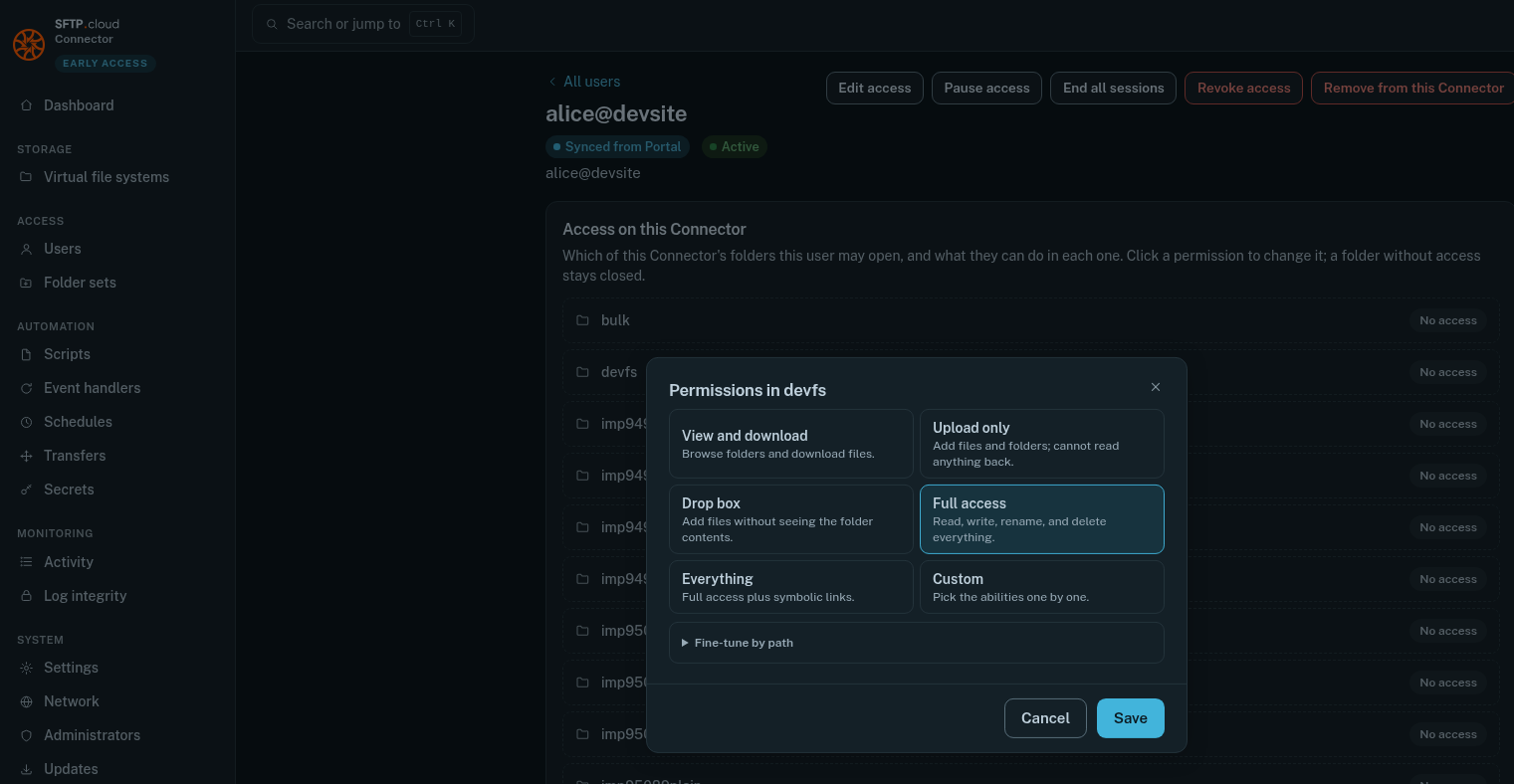
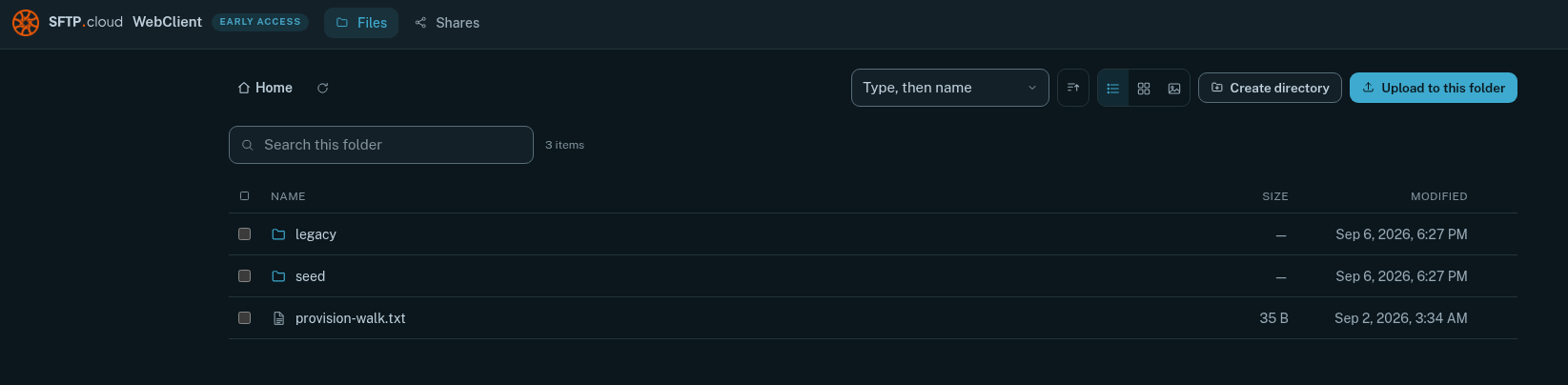
That's it. Now the users for whom you configured access to that VFS will simply be able to point their browser or SFTP client to the site's host name, sign in, and they'll be able to interact with your newly configured storage:

[![image.png](https://kb.syncplify.com/uploads/images/gallery/2026-09/scaled-1680-/rdgimage.png)](https://kb.syncplify.com/uploads/images/gallery/2026-09/rdgimage.png)
\[Manual: [general information about storage back-ends](https://docs.sftp.cloud/connector/backends)\]