Amazon S3
Amazon S3 is probably the most well-known object storage in the world.It's very flexible and support a lot of settings and options. Explaining all of them here would be out of scope, so let us give you the links to the official documentation from Amazon/AWS regarding how to create a bucket and configure an access to it.
Step #1: in the AWS Console
First create your S3 bucket:
Creating a general purpose S3 bucket (opens in a new tab)
Then to create an Access Key and Secret pair:
- Create an IAM User:
- Navigate to the IAM Console
- Select Users
- Click Create user.
- Attach Permissions: In the permissions step, attach a policy granting S3 access (e.g., AmazonS3FullAccess or a custom policy restricting access to your specific bucket).
- Generate Keys: After creating the user, click on the user name, go to the Security credentials tab, and select Create access key.
- Download Credentials: Choose Other for the use case, add a description if desired, and click Create access key. Download the .csv file immediately, as the Secret Access Key is only displayed once.
That's it for the Amazon/AWS side. Now let's move to the SFTP.cloud side.
Step #2: in your SFTP.cloud Storage Connector
For best performance it is recommended that you deploy an SFTP.cloud Storage Connector as close as possible to the storage it handles, in this case an EC2 VM or a container in Amazon ECS are the ideal choices.
The first thing to do is to add a new Virtual File System. For Linode Object Storage in particular there are a few small (but extremely important) details to pay attention to:
- Type:
S3(just like any other S3-compatible object stores) - Region: whichever region you created the bucket in (ex: us-east-1)
- Endpoint: for Amazon/AWS leave this one empty
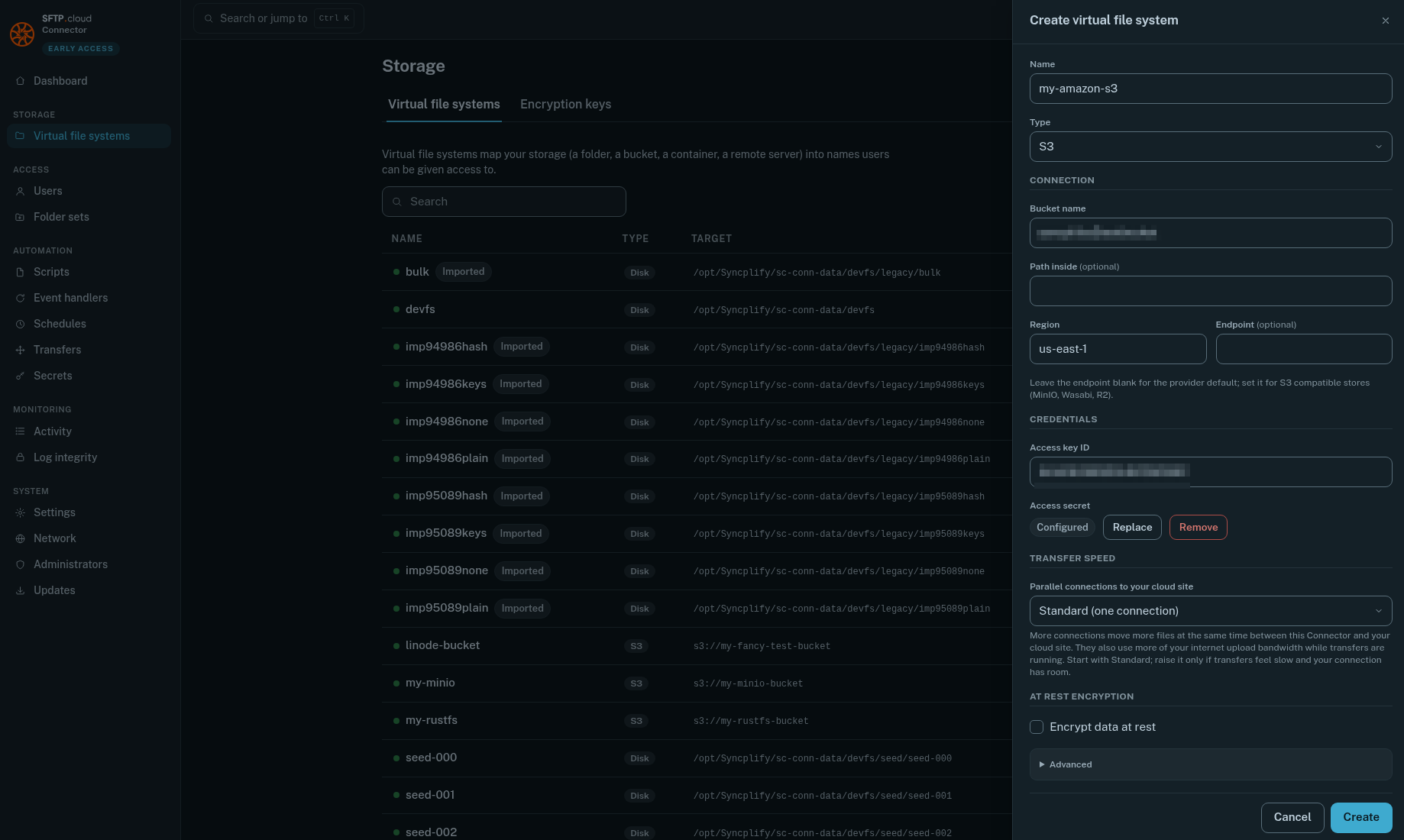
Do NOT forget to push the Save button next to the Access secret after you type it in, or it won't be saved, and nothing will work.
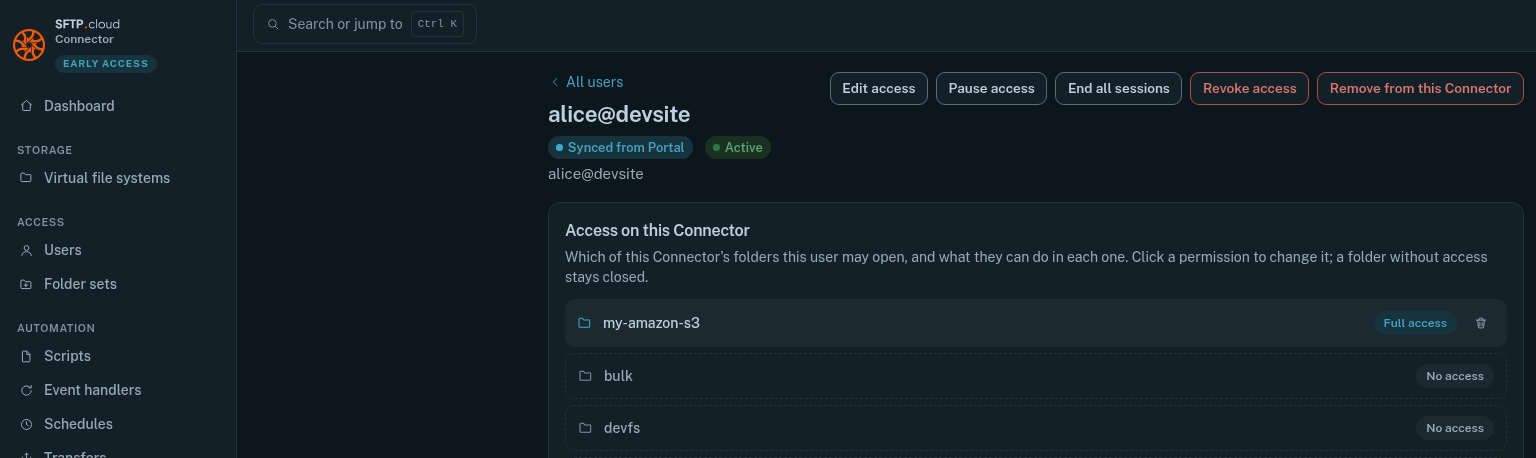
Then, still in the Storage Connector UI, go to the Users page, and give your user(s) the desired access to the newly created VFS:
Finally
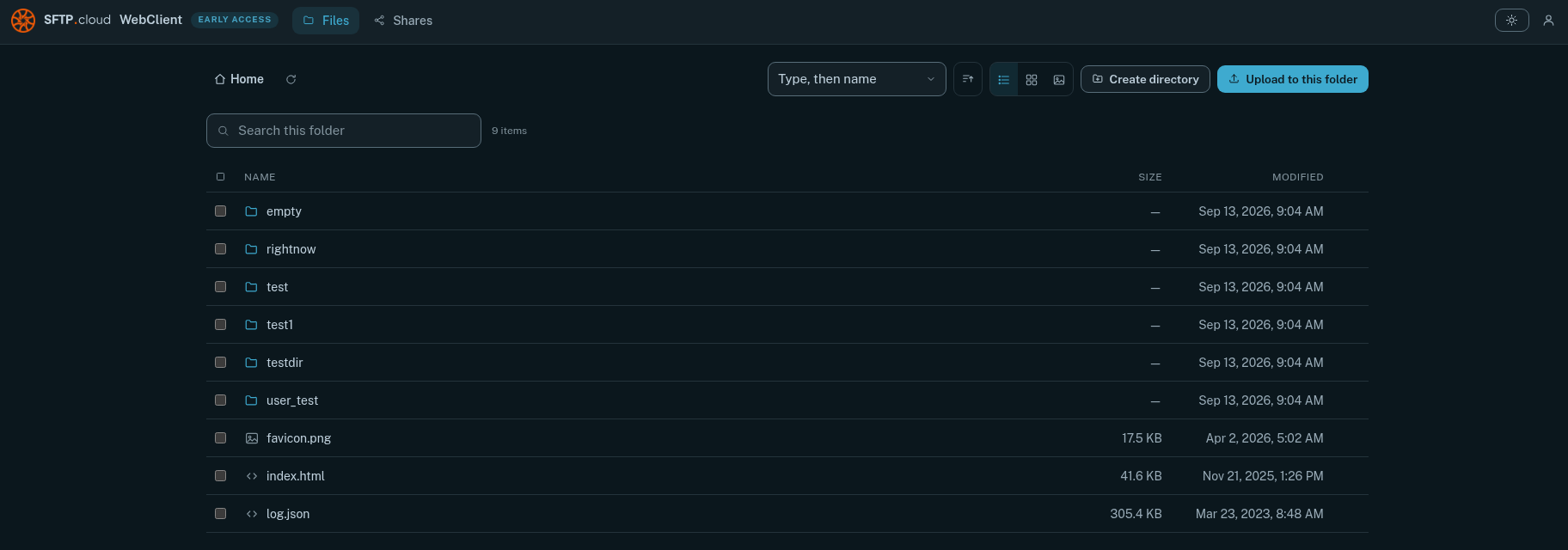
Test it out. Connect to it via your SFTP.cloud WebClient, create a folder, upload some files...